
What it does
Draws a rectangle in three ways.
| Tool | Shortcut | How to use it |
|---|---|---|
| Rectangle | R | Click the first corner, then click the opposite corner |
| Center Rect | Click the center point, then click a corner | |
| 3-Pt Rect | Click corner 1, corner 2 (sets the first side and the tilt angle), then corner 3 |
Where to find it
Sketch ribbon › Draw, or right-click › Rectangle (Rectangle by Corners / by Center / by 3 Corners)
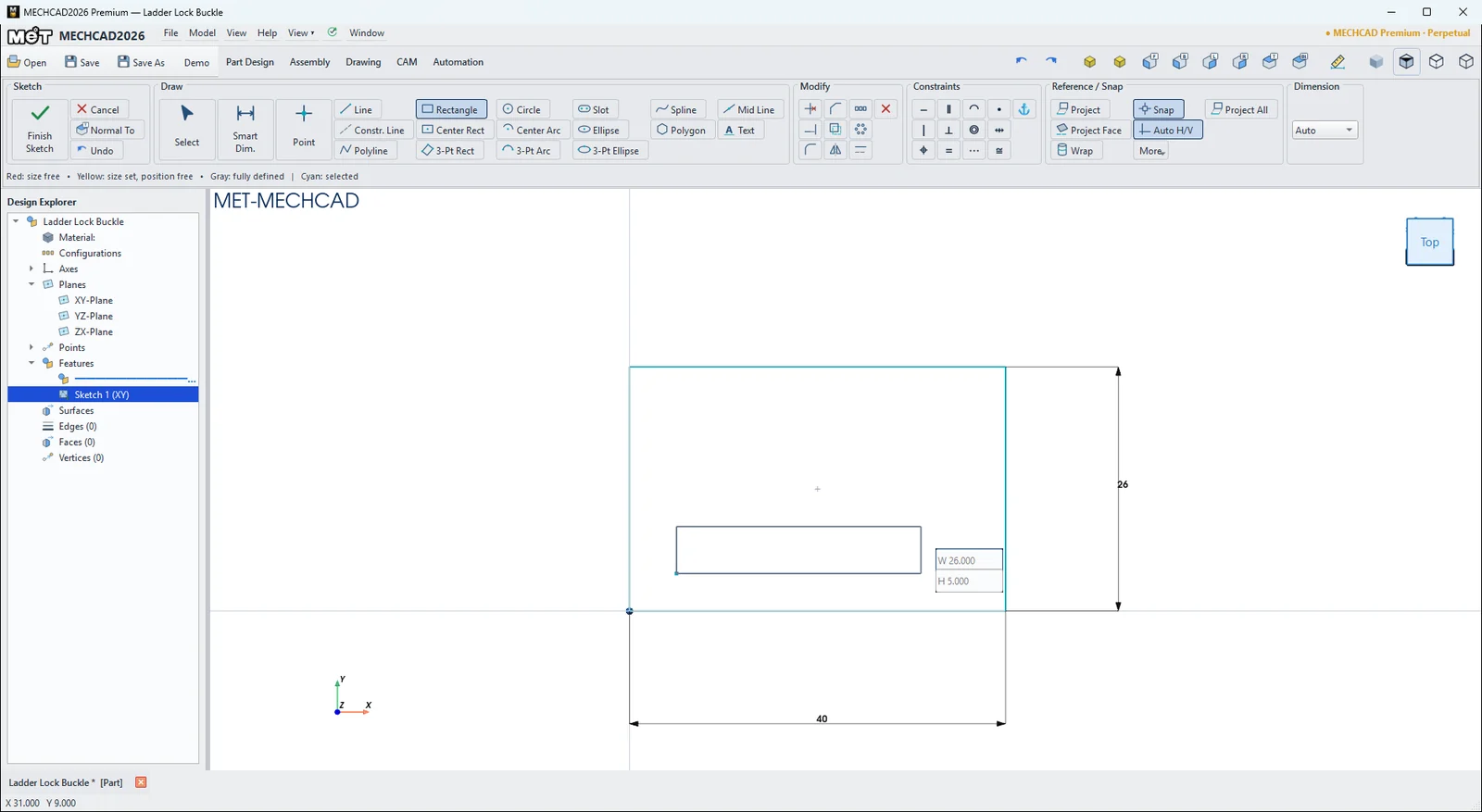
Steps
- Click Rectangle (or press R).
- Click the first corner. The W (width) and H (height) boxes appear next to the cursor.
- Click the opposite corner, or type W, press Tab, type H, then press Enter to get the exact size with dimensions.
Try it: Ladder-lock buckle
The ladder-lock buckle on every backpack strap is just three rectangles: the frame and two webbing slots. It is a good way to try Rectangle and Center Rect.
- Click Sketch and press Enter (XY-Plane). Press R, click the origin, type 40, Tab, 26 and press Enter. This is the frame.
- With Rectangle still active, click inside near (5, 4), type 30, Tab, 6 and press Enter. This is the lower slot. Dimension its corner 5 mm from the left edge and 4 mm from the bottom edge.
- Choose Center Rect, click near (20, 17.5), type 30, Tab, 5 and press Enter. This is the upper slot. Dimension its centre 20 mm from the left edge and 17.5 mm from the bottom edge.
- Click Finish Sketch and Extrude 4 mm. The blue strap in the picture only shows the scale: 25 mm webbing.
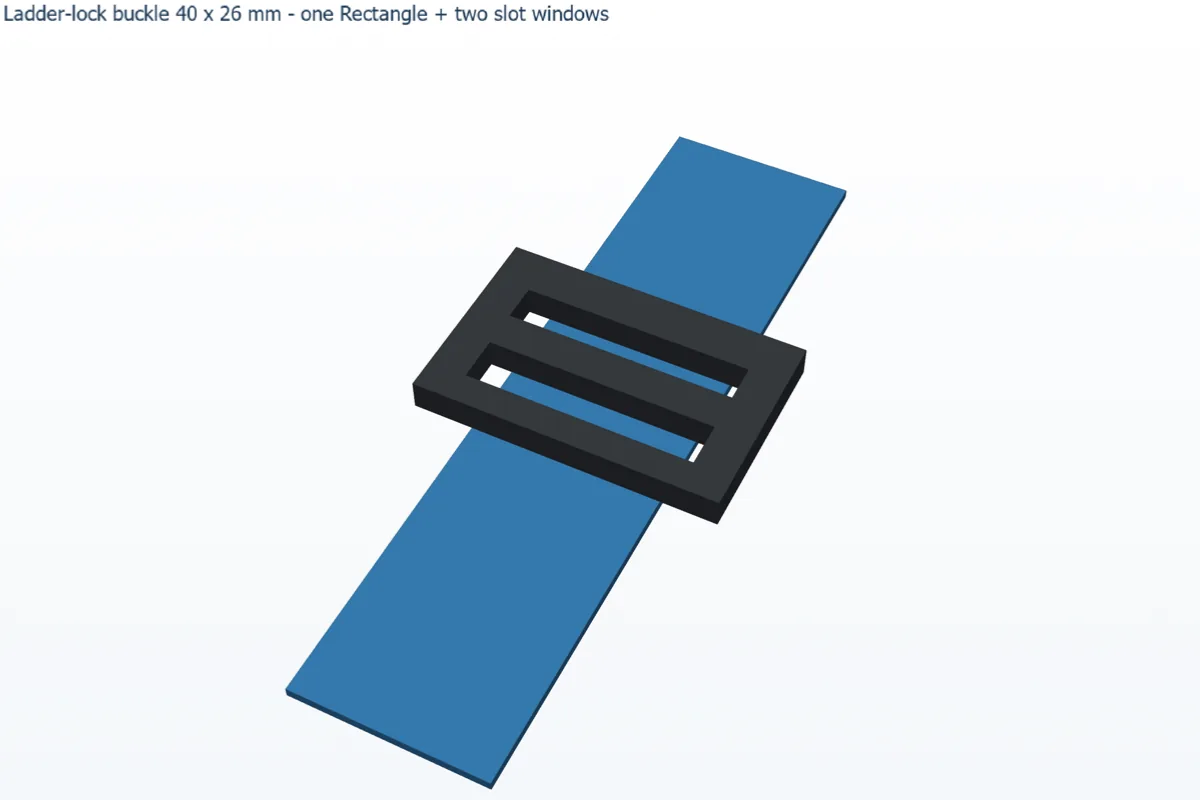
Challenge: Use 3-Pt Rect to add a pull tab tilted 15° on the bottom edge in a new sketch, and extrude it 2 mm.