
What it does
Customers who installed with the direct installer and have a Maintenance Agreement (MA) receive new versions directly through the program.
Without MA (for example during the 30-day trial), download the latest installer from https://license.mechdesigned.com/download/MECHCAD and install it over the current version. A copy installed from the Microsoft Store updates through the Store.
Where to find it
Help › Check for Updates… (it also checks automatically 6 seconds after the program starts)
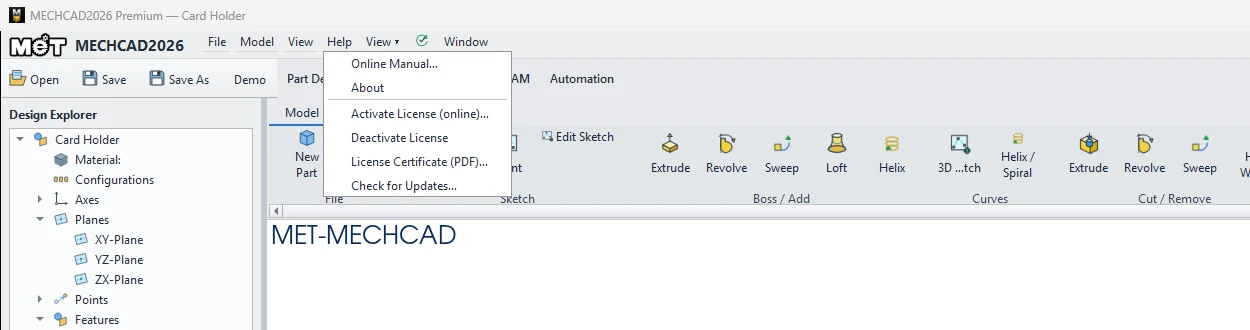
Steps
- Choose Help › Check for Updates….
- If a new version is available, the MECHCAD Update Available window shows the version number.
- Click Download & Install. The program downloads with a progress bar, then closes itself to install. Or click Later (the automatic notice does not ask again for that version).
| Message | Meaning |
|---|---|
| You are up to date. | You have the latest version. |
| Activate an online license to check MA updates. | You must activate an online licence first. |
| This license does not currently include MA update coverage. | The licence has no active MA. Contact MET. |
| This copy was installed from Microsoft Store - updates arrive through the Store. | Updates come through the Microsoft Store. |
| Could not verify updates with the license server. | Check your internet connection. |
Try it: Install an update in the middle of a project
Scenario: you are an MA customer working on a keyboard wrist rest, and a new version comes out.
- Start MECHCAD. About 6 seconds later, MECHCAD Update Available appears with the new version number.
- You are busy, so click Later. The automatic notice does not ask again for this version.
- When you have finished, Save the wrist rest, then choose Help › Check for Updates….
- Click Download & Install. Watch the progress bar. MECHCAD closes and the installer runs.
- Open the wrist rest again and check the version in Help › About.
Challenge: Choose Help › Check for Updates… right after the update: you should see You are up to date.