
What it does
Use the Automation tab to build an automation cell: import robots, cobots, delta robots, equipment and workpieces, define pick and place points, and simulate the motion. Cells are saved as .metauto.
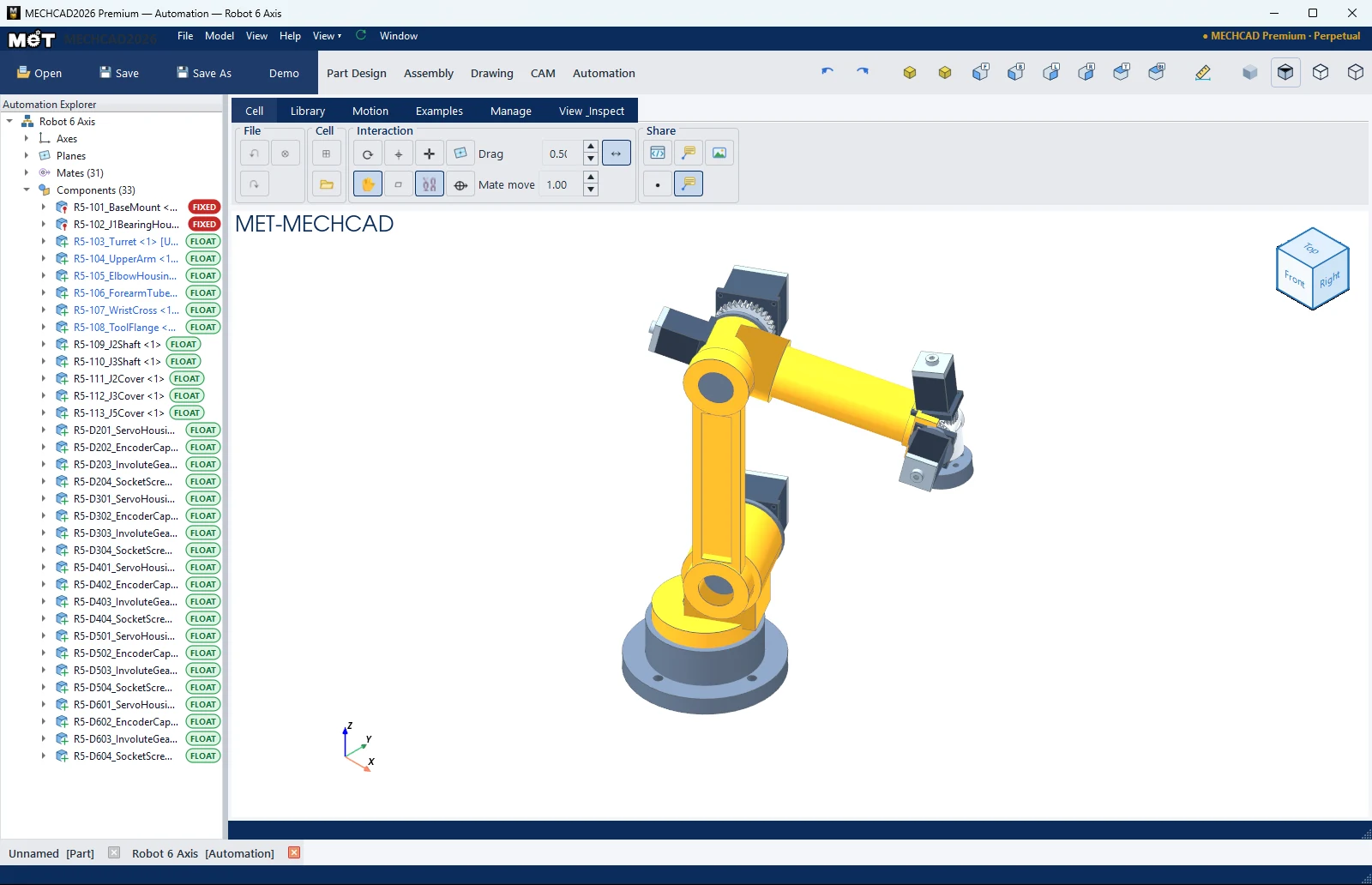
Ribbon



| Tab › Group | Commands |
|---|---|
| Cell › File | Undo, Redo, Close (save / open with Save / Open on the top bar) |
| Cell › Cell | New Cell, Import 3D (asks for the role: Robot / Cobot / Delta / Tool / Equipment / Workpiece) |
| Cell › Interaction | Same as Assembly: Regen, Drag Part, Axis Connector, Plane, Axis, Show Mates, Show Datums, Mate Axis, Drag, Mate move, Min Motion |
| Library › Robot | Robot Library, Cobot Library, Delta Library |
| Library › Equipment & Product | Conveyor, Actuator, Box, Bottle, Object |
| Motion › Motion Wizard | Motion Study, Pick/Place Wizard, Teach Pick, Teach Place, Play, Run Loop, Pause, Stop |
| Motion › Animation | Play Motion, Explode, Collapse, ⏹ Stop, ⏺ Record |
| Examples › Demo | Edit Pattern |
| Manage / View & Inspect | Component State, Share (Export HTML/STL, 3D Notes, Picture), View, Inspect (Measure, Interference, Clearance) |

Workflow
- New Cell.
- Import a robot from the Robot Library or use Import 3D.
- Add conveyors, boxes and bottles from Equipment & Product.
- Use the Pick/Place Wizard or Teach Pick / Teach Place (select a point, then click; the status bar shows Pick taught at X… Y… Z… mm).
- Click Play or Run Loop (Automation RUN LOOP active - click Stop to finish), then Stop.
Note: This workbench is in MECHCAD Expert and Premium. On Standard, the tab shows a card suggesting an upgrade. See MECHCAD Editions.