
What it does
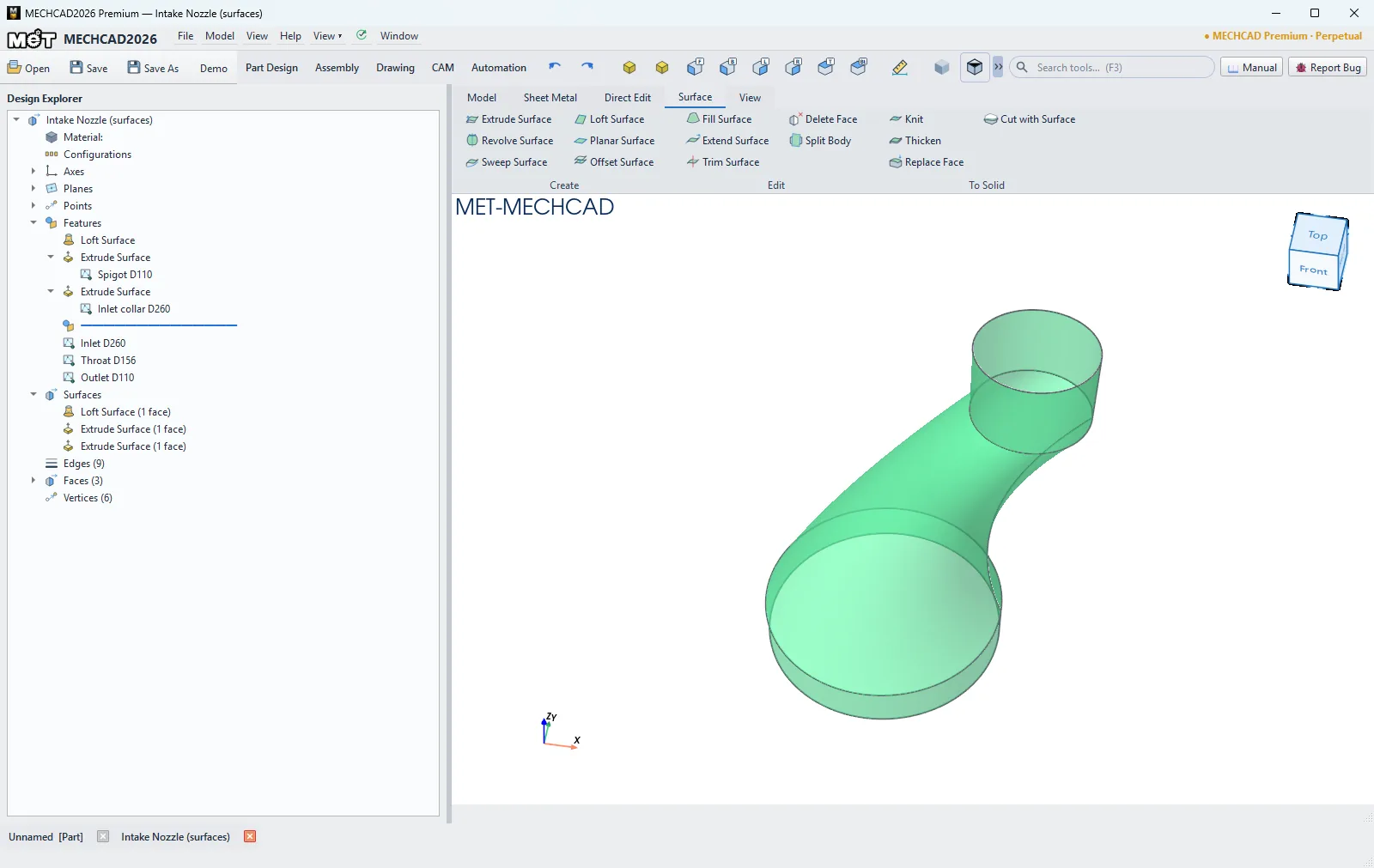
Use surfaces for parts with complex curved shapes that are hard to build with solid features, such as covers, handles or shapes whose faces must blend smoothly. A surface is a thin sheet with no thickness. You build the surfaces first, then turn them into a solid with the To Solid group. All surfaces are listed under the Surfaces node in the Design Explorer.
Every command opens the floating feature box with a live preview. OK creates one feature (one undo step). To change it later, right-click › Edit Feature reopens the same box with its values filled in.
Where to find it
The Surface tab of the ribbon in the Part window has three groups:
| Group | Buttons |
|---|---|
| Create | Extrude Surface, Revolve Surface, Sweep Surface, Loft Surface, Planar Surface, Offset Surface |
| Edit | Fill Surface, Extend Surface, Trim Surface, Delete Face, Split Body |
| To Solid | Knit, Thicken, Replace Face, Cut with Surface |
Steps
- Prepare the sketch (or a body with the edges/faces to pick) that the command needs.
- Click the command on the Surface tab. The feature box opens.
- Make the picks: choose a sketch from the list in the box (or click the sketch in the Design Explorer), click faces or edges in the view (click again to remove), and click a surface in the view to fill a surface slot.
- Adjust the values, check the preview, then click OK.
Create: new surfaces
| Command | Needs | Options (default) |
|---|---|---|
| Extrude Surface | A profile sketch, open or closed | Depth (10 mm), Other side (0 = none), Mid plane (off), Reverse direction (off) |
| Revolve Surface | A profile sketch, open or closed | Axis (X axis / Y axis / Z axis, starts at X), Angle (360°) |
| Sweep Surface | A profile sketch and a different path sketch | Keep profile orientation (off) |
| Loft Surface | At least 2 section sketches, ticked in order | Ruled = straight between sections (off) |
| Planar Surface | A closed sketch, or click the edges of a closed planar loop | - |
| Offset Surface | Click faces of the solid or of a surface | Distance (5 mm, negative = inward) |
Edit: change surfaces
| Command | Needs | Options (default) |
|---|---|---|
| Fill Surface | Click boundary edges (one closed loop) and/or tick boundary sketches | Continuity to the faces: C0 (position) / G1 (tangent) / G2 (curvature) (starts at C0) |
| Extend Surface | Click one face of a surface, and optionally the edges to extend past (none = every side) | Distance (5 mm), Extension: Natural (follow the surface) / Linear (straight on) (starts at Natural) |
| Trim Surface | The surface to trim and a trimming tool | Trim with: Another surface / Datum plane / Sketch (projected) (starts at Another surface), Flip side (off), Keep the trimming surface (on) |
| Delete Face | Click faces of the solid or of a surface | Mode: Delete (body becomes a surface) / Delete & Patch (heal the solid) / Untrim (full natural face) (starts at Delete) |
| Split Body | A splitting surface, or choose a plane | Keep the splitting surface (on) |
To Solid: turn surfaces into a part
| Command | Needs | Options (default) |
|---|---|---|
| Knit | Tick (or click) the surfaces to sew along shared edges | Gap tolerance (0.01 mm), Try to form a solid (on), Merge a formed solid into the body (on) |
| Thicken | Click the surface to thicken | Thickness (2 mm), Both sides = half each way (off), Reverse side (off), Merge into the body (on), Keep the surface (off) |
| Replace Face | Click the solid face(s) to replace, then the replacing surface | Keep the surface (off) |
| Cut with Surface | Click the cutting surface | Flip side = keep the other part (off), Keep the surface (on) |
Note: Surface modeling is available in MECHCAD Expert and Premium. On Standard the buttons are visible but disabled, with an upgrade hint. When Knit closes the surfaces completely, the result becomes a solid. For Replace Face, the replacing surface must cover the whole face.