
What it does
Use the Assembly tab to join parts and sub-assemblies with mates, drag parts so they move with their joints, explode the view, and pass the result on to Drawing / BOM. Assemblies are saved as .metasm.
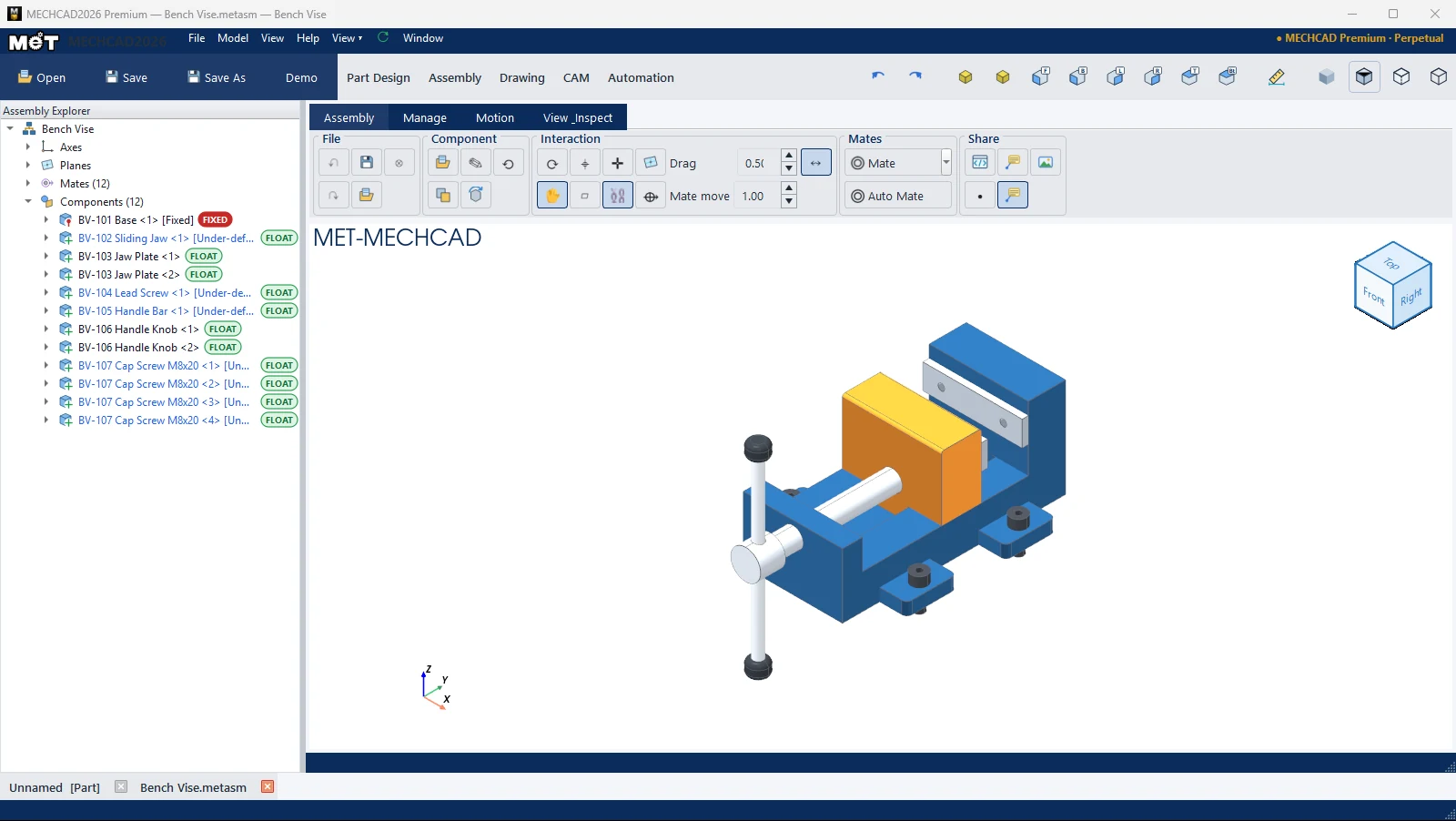
Assembly ribbon




| Tab › Group | Commands |
|---|---|
| Assembly › File | Undo, Redo, Save, Load, Close |
| Assembly › Component | Insert Part, Duplicate, Open Part, Reload Part, Update Sub-Asm |
| Assembly › Interaction | Regen, Drag Part, Axis Connector, Plane, Axis, Show Mates, Show Datums, Mate Axis, Drag (sensitivity), Mate move (speed), Min Motion |
| Assembly › Mates | Mate (split button with a list of mate types), Auto Mate |
| Assembly › Share | Export HTML, Export STL, 3D Notes, Show Notes, Picture |
| Manage › Mate Connector | Add Connector, Flip Z, Rotate 90 |
| Manage › Assembly Tools | Linear Pattern, Auto BOM |
| Manage › Component State | Transparent, Show All, Hide All, Find Hidden, % transparency, Fix/Unfix, Show/Hide, Suppress, Delete |
| Manage › Derived Part | Union / Add, Subtract, Intersect, Scale, Mirror Part |
| Motion › Motion Study | Save Point, Move Point, Motion Studio |
| Motion › Animation | Play Motion, Explode, Collapse, ⏹ Stop, ⏺ Record, Speed ×, Loop, Edges, Shadows |
| View & Inspect › View | Fit, Iso, standard views, Roll ↺/↻, Orthographic/Perspective, Display, Shadows, Ground Reflection, Realistic Render, Save Render |
| View & Inspect › Inspect | Measure, Interference, Clearance, Size Box |
| View & Inspect › Orientation | Rotate Datum…, Auto Align, Align Face, Rot X 90, Rot Y 90, Rot Z 90 |
Typical workflow
- Insert Part the first part. It is fixed in place as the base.
- Insert the next part, then add a Mate or use Auto Mate.
- Drag parts to check how they move. See Drag and move parts.
- Save as
.metasm, then create a Drawing or Auto BOM.