
What it does
- 3D Notes are text labels in the 3D view that point to a face. Use them to mark sensors, motors or inspection points. They can appear in an HTML export.
- Picture places an image on the face of a component.
Where to find it
Assembly › Share › 3D Notes / Show Notes / Picture
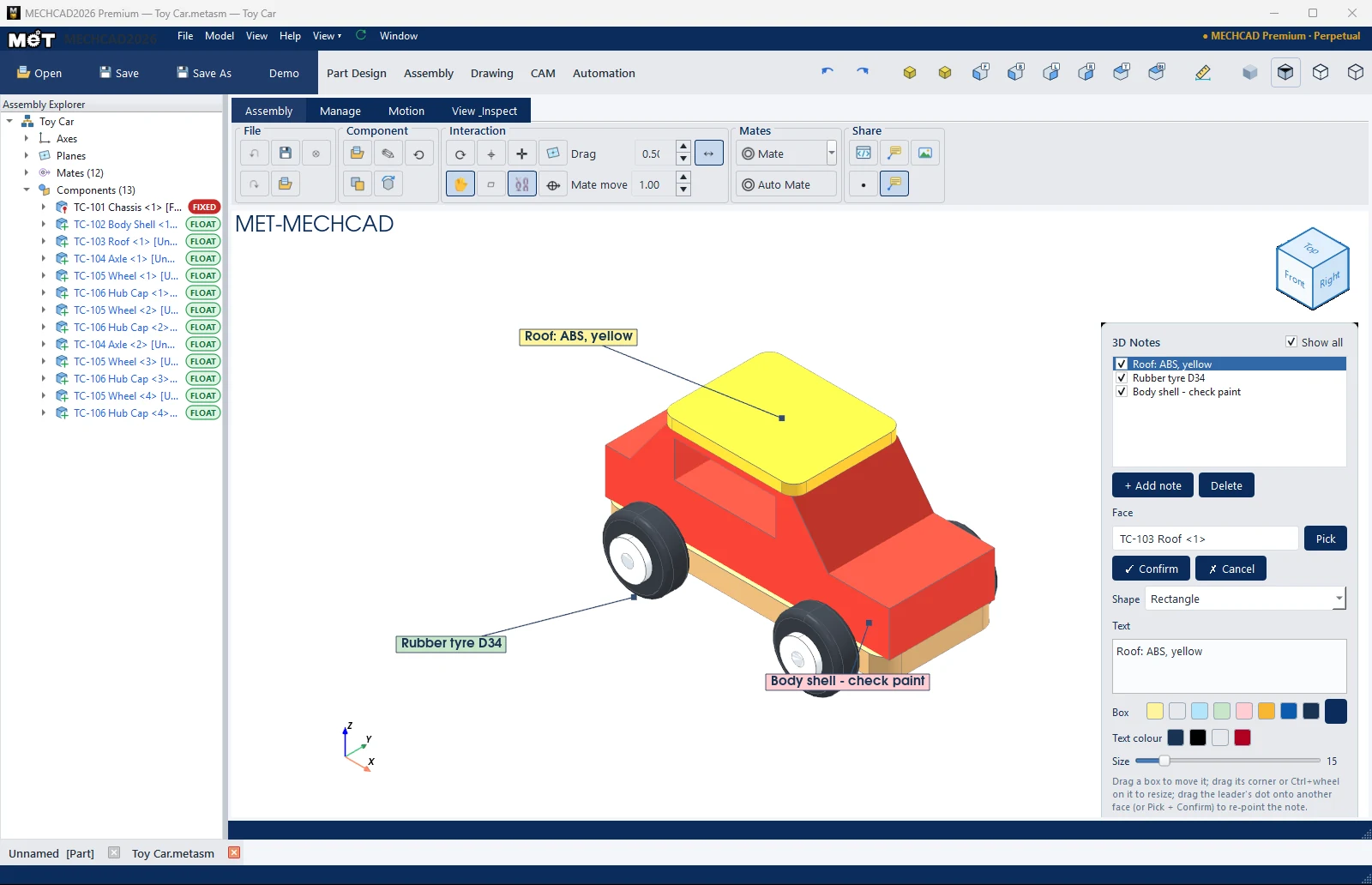
3D Notes
- Click 3D Notes, then click + Add note.
- Click Pick, then click the face the note should point to. Click ✓ Confirm.
- Type the Text and choose the Shape, Box colour, Text colour and Size.
- Drag the note box to move it. Drag a corner, or use Ctrl+mouse wheel, to shrink or enlarge it.
- Show Notes shows or hides all notes (the notes are kept).
| Option | Meaning |
|---|---|
| Show all | Shows all notes in the list |
| Shape | Rectangle / Rounded rectangle / Circle |
| Box / Text colour | Box color / text color |
| Size | Text size |
Picture
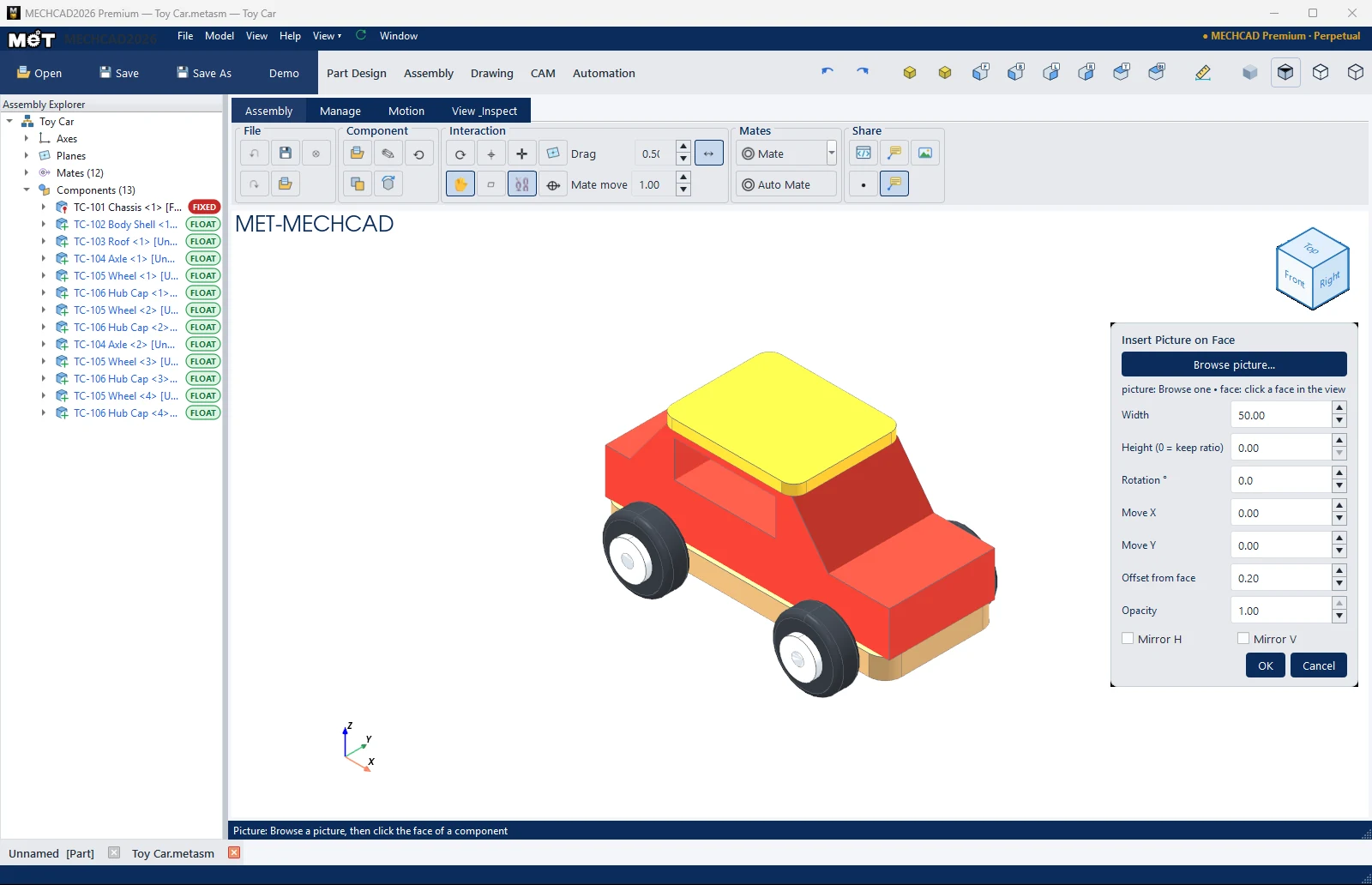
Click Browse picture…, then click a face. Adjust Width, Height (0 = keep ratio), Rotation °, Move X/Y, Offset from face, Opacity and Mirror H/V, then click OK.