
What it does
Draws straight lines in a sketch.
| Tool | Shortcut | How to use it |
|---|---|---|
| Line | L | Click the start point, then click the next points one after another. Finish by closing the shape (Profile closed), double-clicking, clicking the last point again, or pressing Esc. |
| Constr. Line | Like Line, but it makes a construction line (dashed) that is not used to build a feature. | |
| Mid Line | Click the midpoint, then click an end of the line (Line by Middle). | |
| Polyline | Click vertices one after another. Double-click or press Esc to finish. |
Where to find it
Sketch ribbon › Draw, or right-click on empty space
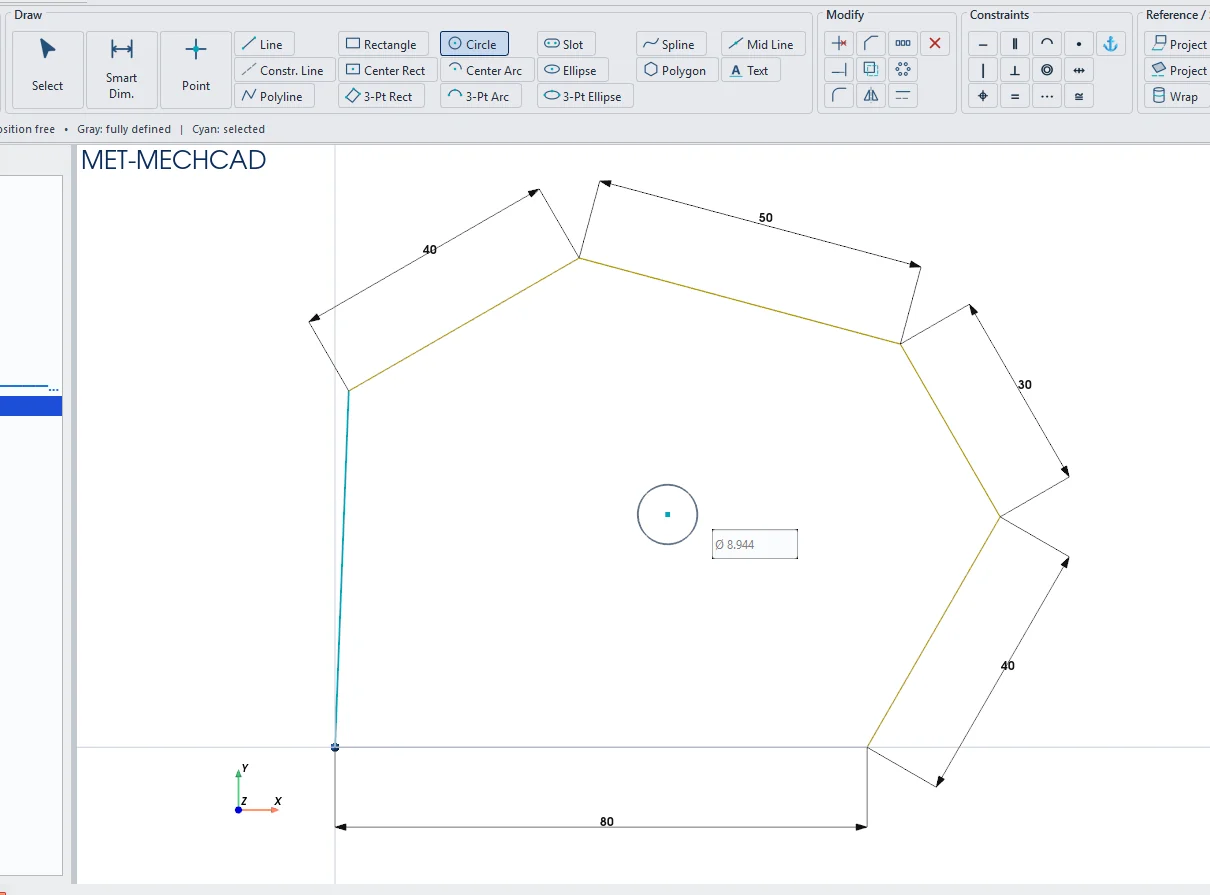
Steps
- Click Line (or press L).
- Click the start point. While you drag, you see the L (length) and ∠ (angle) boxes. You can type values right away. See Dynamic input.
- Click the next point. The new line continues from the end of the previous line.
- Press Esc to end the chain. Press Esc again to return to Select.
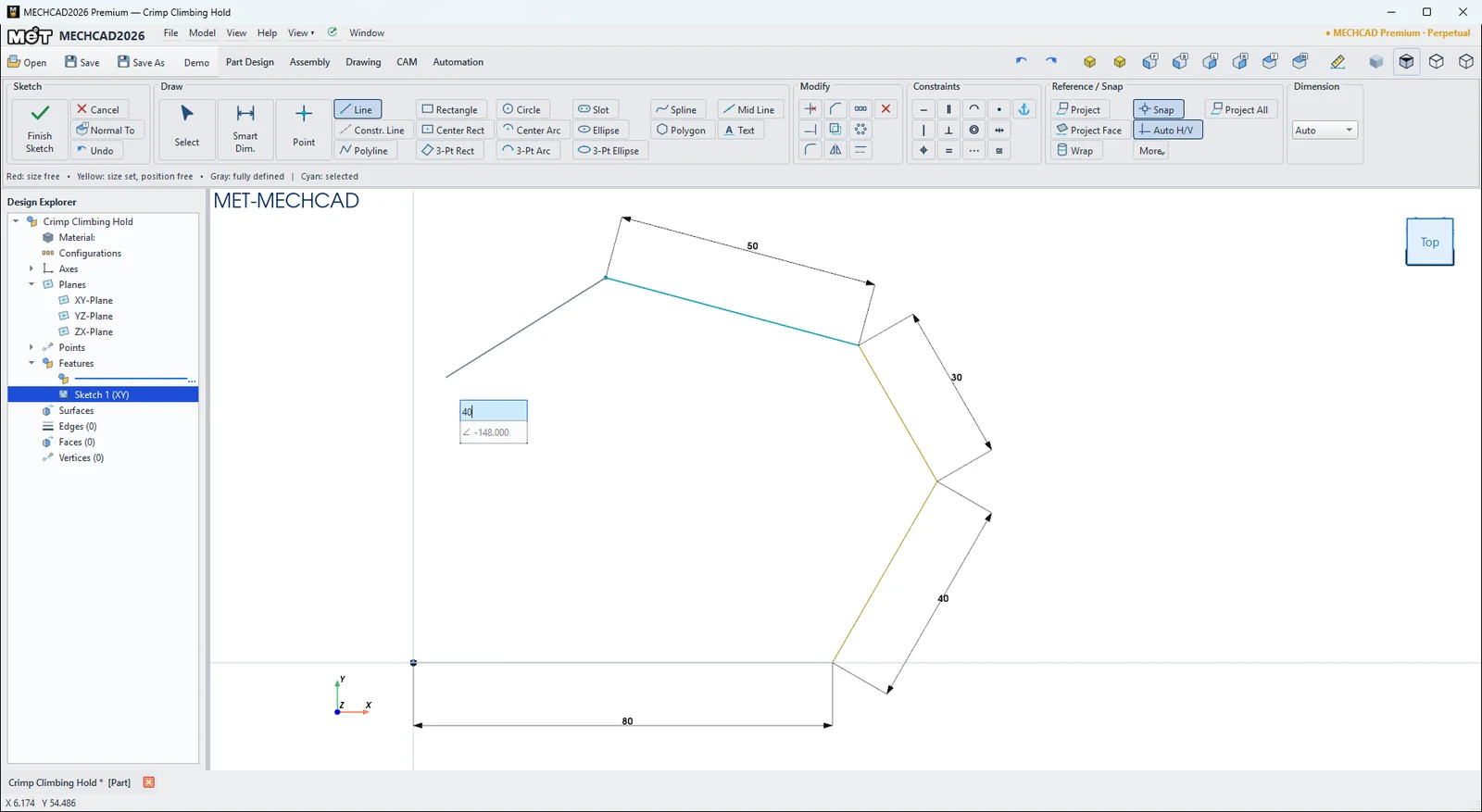
Note: When Auto H/V is on, a line that is nearly horizontal or vertical is straightened and given a Horizontal/Vertical constraint automatically. End points also align with other points, with dashed guide lines.
Try it: Crimp climbing hold
A bouldering crimp is a faceted block with one sharp edge to pull on. With Line you can draw the whole outline in one chain by typing a length and an angle for each edge.
- Click Sketch and press Enter (XY-Plane). Press L and click the origin.
- For each edge, type the length, press Tab, type the angle and press Enter:
- 80, Tab, 0, Enter
- 40, Tab, 60, Enter
- 30, Tab, 120, Enter
- 50, Tab, 165, Enter
- 40, Tab, 210, Enter
- Click the start point (Endpoint snap) to close the outline. The status bar shows Profile closed.
- Press C, click about (50, 35), type 10 and press Enter. This is the hole for the M10 hold bolt.
- Click Finish Sketch, Extrude 30 mm, then round all the edges with a 4 mm Fillet so the hold is easy on the hands.
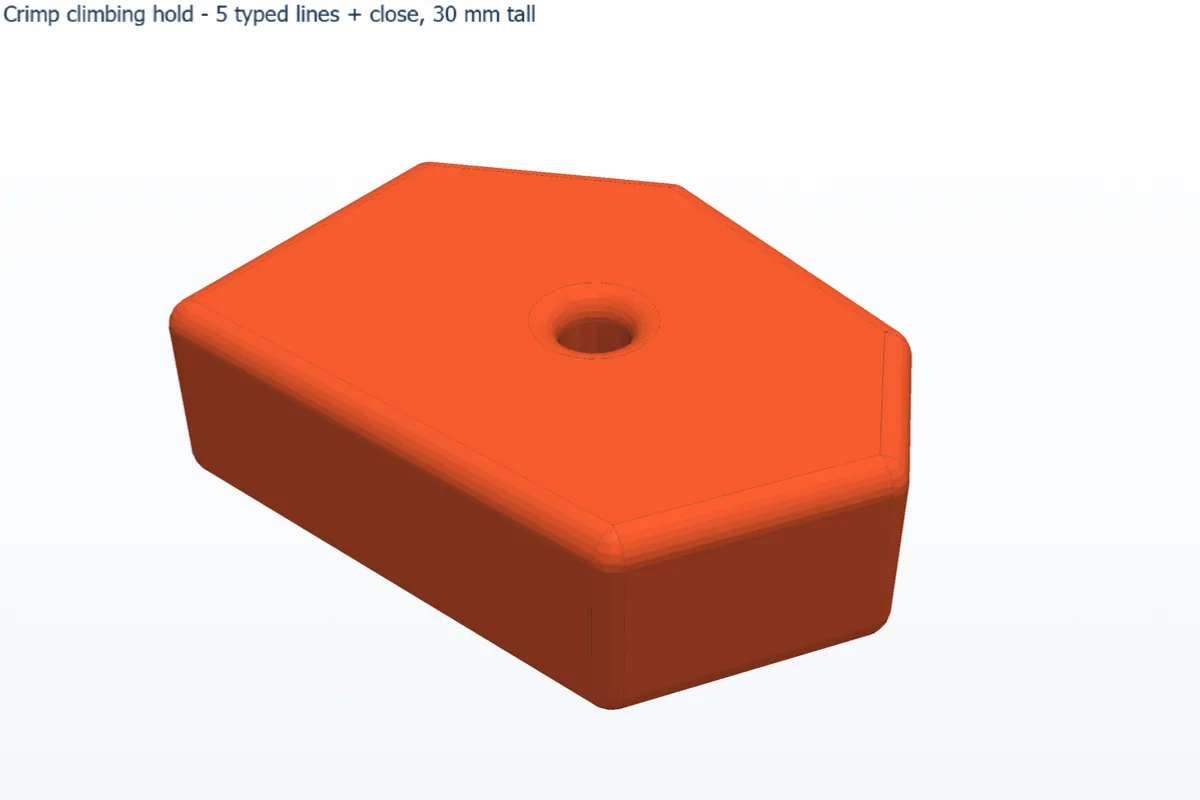
Challenge: Change the 165° edge to 150° and see how the crimp edge becomes sharper.