
What it does
Every feature can be edited later through a floating box that is pre-filled with the existing values. Click OK and the part recalculates at the feature's original position in the history.
Where to find it
- Double-click a feature in the Design Explorer
- Right-click a feature (in the Design Explorer or on its face) › Edit Feature
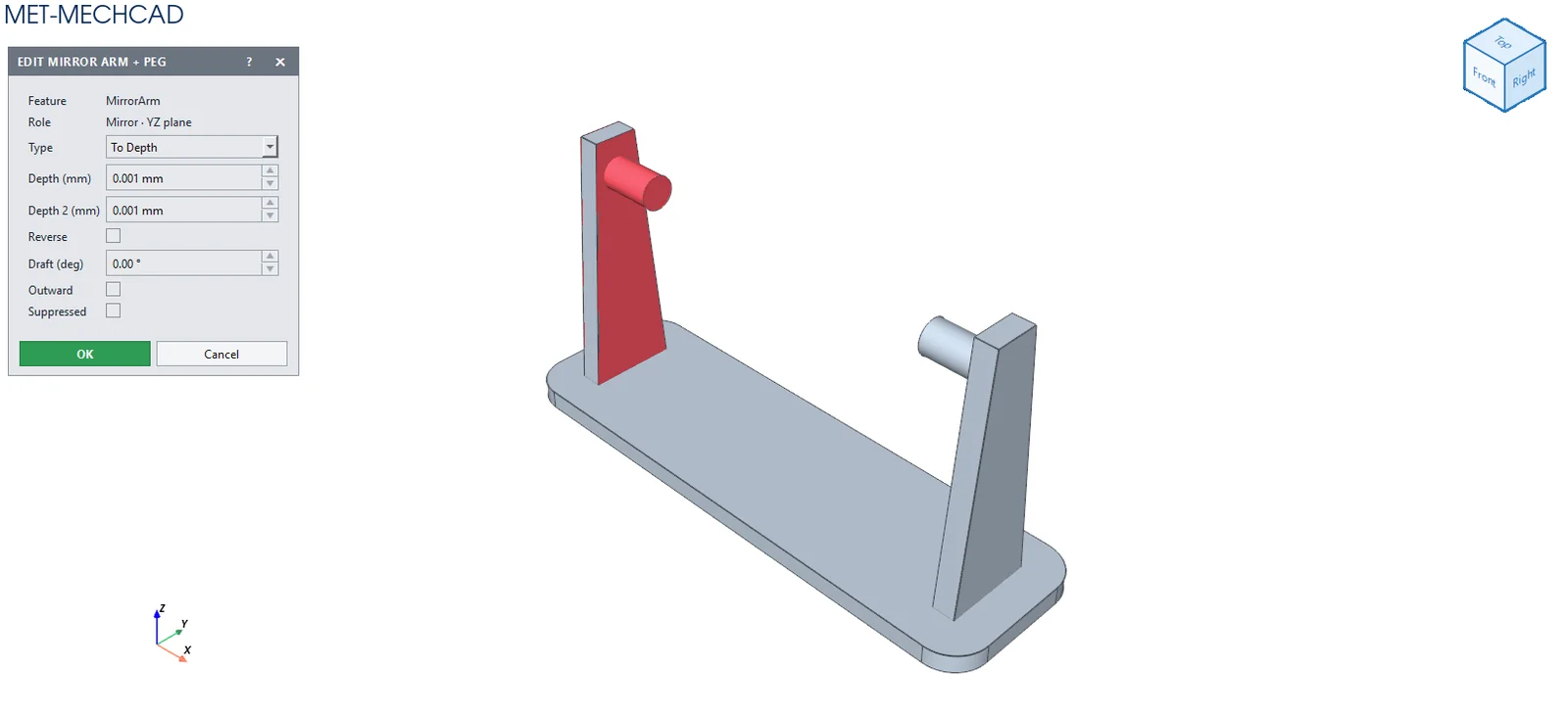
Behaviour shared by all command boxes
| Part | Description |
|---|---|
| Title bar (dark) | The command name in capitals, the ? and ✕ buttons. Drag to move. |
| Pick fields (Sketch, Face, Edge) | Click in the view or the Design Explorer to fill them. |
| Orange text ▸ | What you still need to select before you can click OK. |
| Red box | An error. The box stays open so you can correct it. |
| OK / Done (green) | Confirms. |
| Cancel | Cancels and restores the previous values. |
Fields in the Edit box (general features)
| Field | Description |
|---|---|
| Feature / Role | Name and role of the feature |
| Type | Distance type (To Depth, Through All …) |
| Depth (mm) / Depth 2 (mm) / Reverse | Depth and direction |
| Draft (deg) / Outward | Taper angle |
| Pattern features, Count, Spacing, Axis, Full 360°, Angle, Axis centre | Pattern settings |
| Turns, Pitch (mm), End pitch (0=const), Right-hand (CCW) | Helix settings |
| Suppressed | Turns calculation off |
Note: The command box is floating (it does not lock the screen). Drag its title bar to move it. The preview updates immediately when you change a value. OK is saved as one Undo step. Cancel, ✕ or Esc cancels. If the conditions are not yet met, the OK button is grey and an orange message tells you what to select.