
What it does
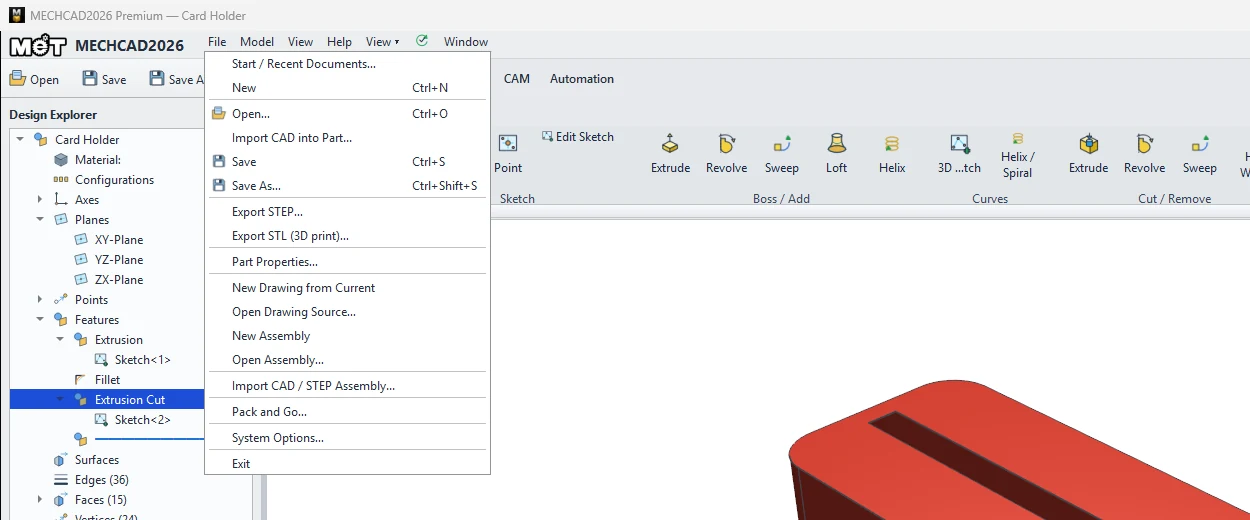
- Export STEP… exports a part as STEP for other CAD programs.
- Export STL (3D print)… exports a binary STL in mm for 3D printers and slicers.
- Assembly: Share › Export STL exports the selected parts, or all visible parts if none are selected.
Where to find it
File › Export STEP… / Export STL (3D print)…
Steps
- Open the part (use Roll to End first if you have rolled back).
- Choose File › Export STEP… or Export STL (3D print)….
- Enter a file name. For STL, choose the quality in the file type field.
| STL quality | Description |
|---|---|
| STL for 3D printing - Fine | Detailed, large file |
| … - Standard | General use |
| … - Draft / small file | Coarse, small file |
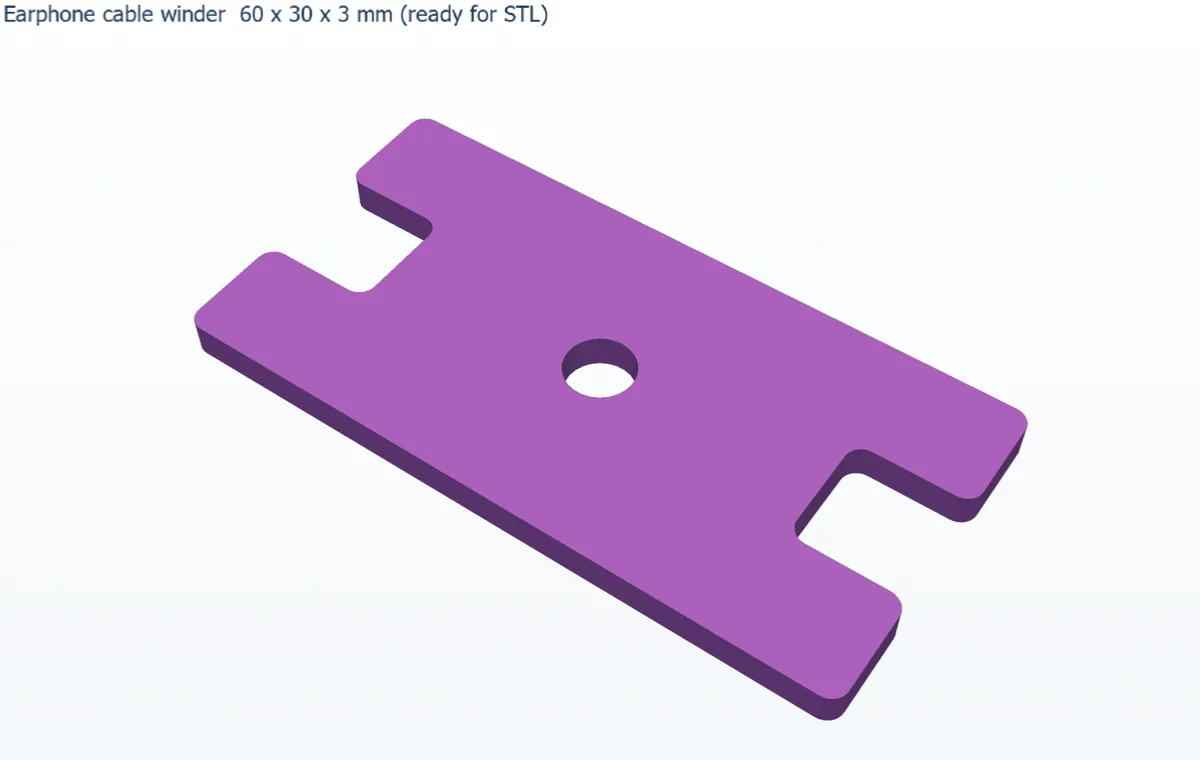
Try it: Earphone cable winder, ready for the 3D printer
Wrap your earphone cable around this H-shaped winder and plug the jack into the centre hole: no more knots in your bag.
- Sketch on XY a rectangle 60 × 30 and Extrude 3 mm.
- Right-click the top face › New Sketch on this face. Draw two 10 × 10 squares, one at each short end, 10 mm from the front edge and touching the end edge. Add a Ø6 circle in the centre (30, 15).
- Finish Sketch, then Cut / Remove › Extrude with Through All.
- Fillet with Radius 1.5: click the 4 outside vertical corners and the 8 vertical corners of the notches, then Done.
- Choose File › Export STL (3D print)…. In the file type list, choose STL for 3D printing - Fine, and save
cable-winder.stl. - Choose File › Export STEP… and save
cable-winder.stepfor a friend who uses another CAD program. - Open the STL in your slicer. The size is 60 × 30 × 3 mm, already in millimetres.
Challenge: Export the same part again with Draft / small file and compare the two STL file sizes.