
What it does
Motion Study records assembly poses (for example robot arm positions P1, P2, P3). It then builds a Move / Pick / Place sequence that you can play as an animation and export as an MP4 video.
Where to find it
Motion › Motion Study › Save Point / Move Point / Motion Studio
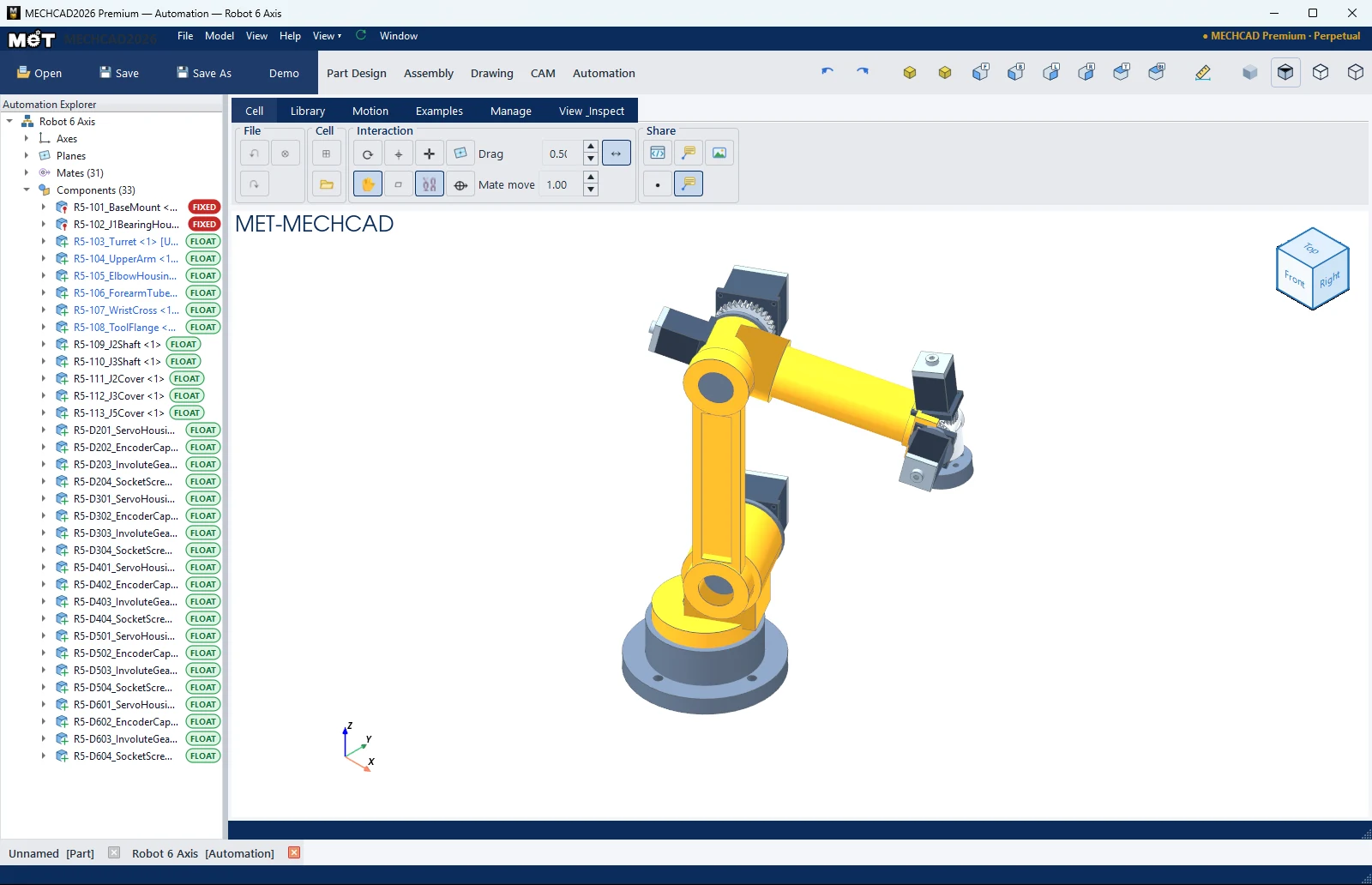
Steps
- Drag the components until the mechanism is in the pose you want, then click Save Point (or ● Save Point in the panel).
- Repeat to record more points (P1, P2, …). Double-click a point in the list to move to that pose.
- Add steps to the Sequence: + Move (go to a point), + Pick (pick the selected component), + Place (place it).
- Click ▶ Play to play, and ■ Stop to stop.
- Click 🎬 Export Video… to save an MP4.
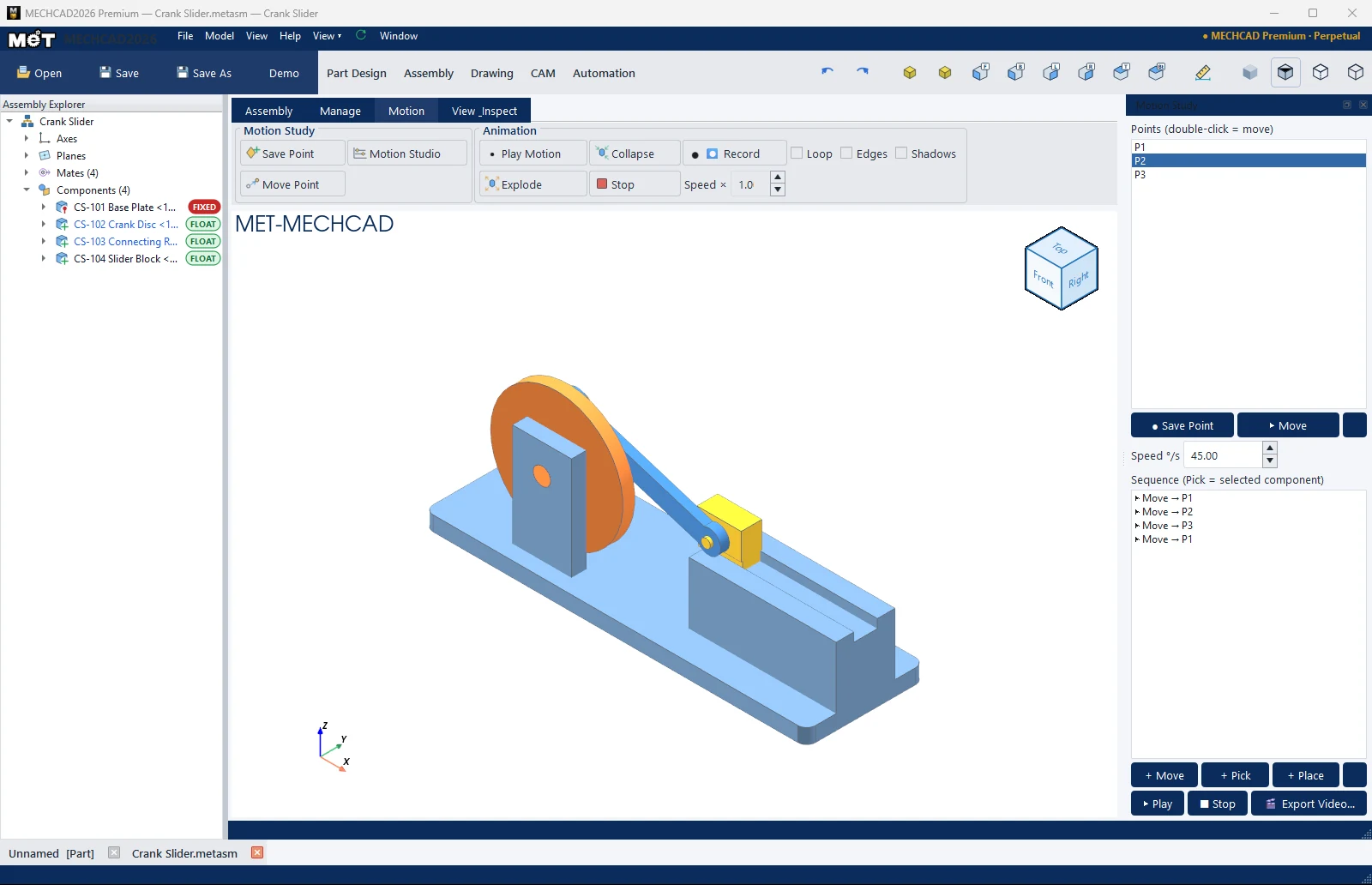
| Part | Meaning |
|---|---|
| Points (double-click = move) | List of recorded poses. ✖ = delete. |
| Speed °/s | Joint speed (5–360, default 45) |
| Sequence (Pick = selected component) | The motion sequence |
| ▶ Play / ■ Stop | Play / stop |
| 🎬 Export Video… | Export an MP4 video |
Note: Move Point on the ribbon asks Move robot to:. If there are no points yet, it shows No saved points yet — Save Point first.
Note: This command is in MECHCAD Expert and Premium. On Standard, the status bar shows a message suggesting an upgrade. See MECHCAD editions.