
What it does
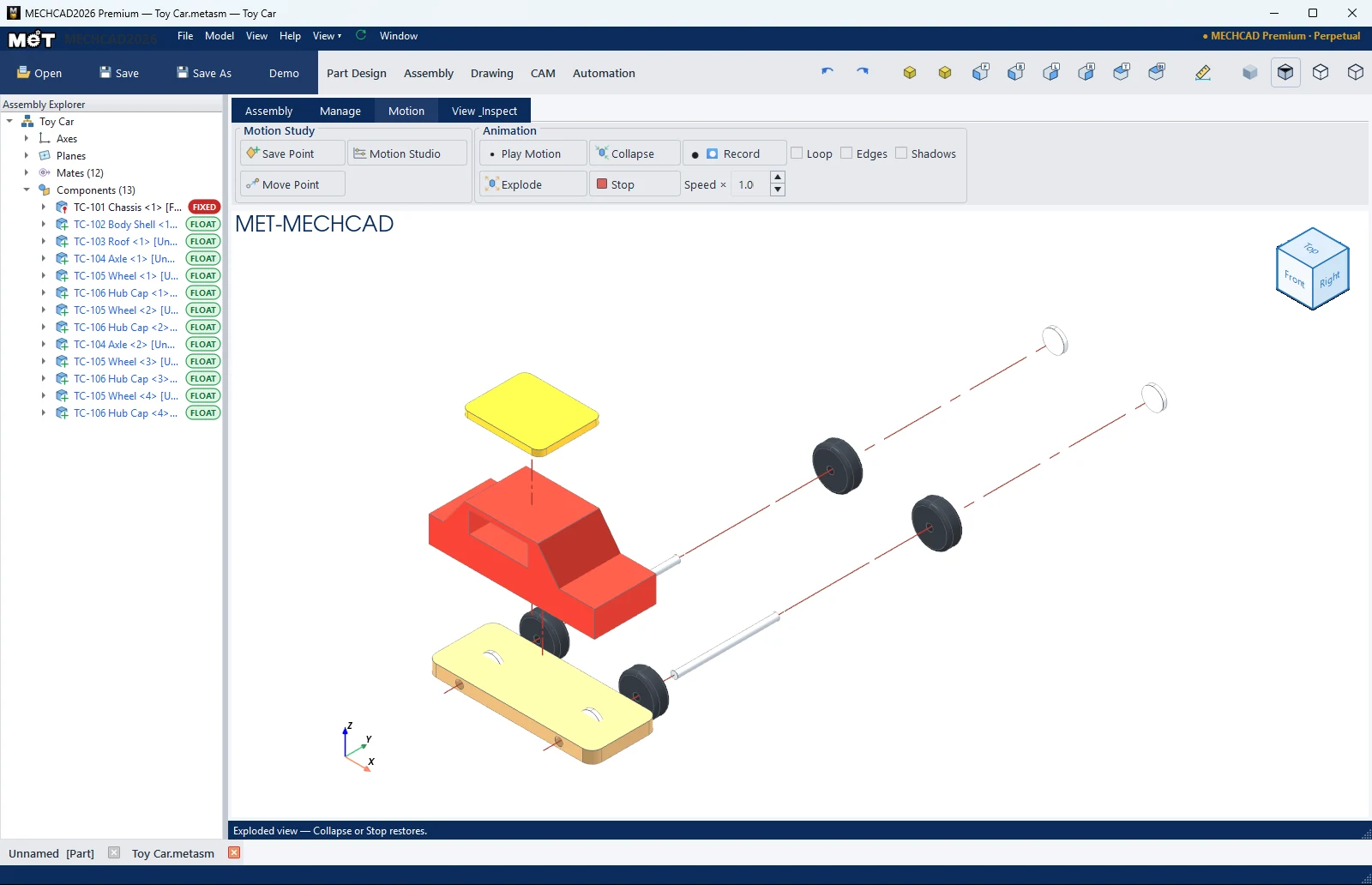
Explode separates the parts along their mate directions as an animation. Use it for presentations or to check the assembly sequence. Collapse puts them back. The real positions and mates are not changed.
Where to find it
Motion › Animation › Explode / Collapse
Steps
- Click Explode (the assembly needs at least 2 parts). The parts move fully apart (100%) and the floating Explode box opens beside the Explorer.
- Drag the Explode distance slider, or type a % value, to set the distance yourself. The parts move live while you drag.
- Tick or clear Center lines to show or hide the center lines.
- Click Collapse to put the parts back, or ⏹ Stop. Click Close to close the box.
- Adjust Speed × if you want the animation slower or faster. Tick Loop to play back and forth continuously.
Explode box
| Option | Default | Description |
|---|---|---|
| Explode distance (slider + %) | – | 0% = assembled, 100% = fully exploded. The parts move live while you drag. |
| Explode | – | Plays the animation to 100% |
| Collapse | – | Plays the animation back to the assembled position |
| Center lines | On | A line from each part's assembled position to where it is now (the explode trail) |
| Close | – | Closes the box |
The Explode / Collapse buttons in the box and on the ribbon drive the same value as the slider (the slider follows the animation). The explode distance and the Center lines setting are saved in the file and come back when you reopen it.
Ribbon options
| Option | Default | Description |
|---|---|---|
| Speed × | 1.0 | Speed (0.1–8) |
| Loop | Off | Plays Explode ⇆ Collapse continuously |
| Edges | – | Shows edge lines during playback |
| Shadows | – | Shows shadows during playback |
Explode direction: along the axis of Concentric mate groups first. If there are none, it uses the normal of Coincident faces. If there are none of those either, it uses the nearest principal axis.
Note: Dragging the slider does not re-solve mates or change the real component positions, so it stays smooth even on large assemblies with thousands of parts.
Note: An exploded view for documents, with numbered balloons, can be made in Auto BOM (Edit Balloons).