
What it does
Sets the sheet template and size, and fills in the title block, which shows your own company name and logo.
Where to find it
Drawing Management › Sheet › Sheet Props / Title Block / New Sheet
The Sheet Properties window lets you choose a Template (for example Standard - full title block) or a Blank Sheet, and the Size (ISO A0–A4 and ANSI A–E, landscape and portrait). Examples:
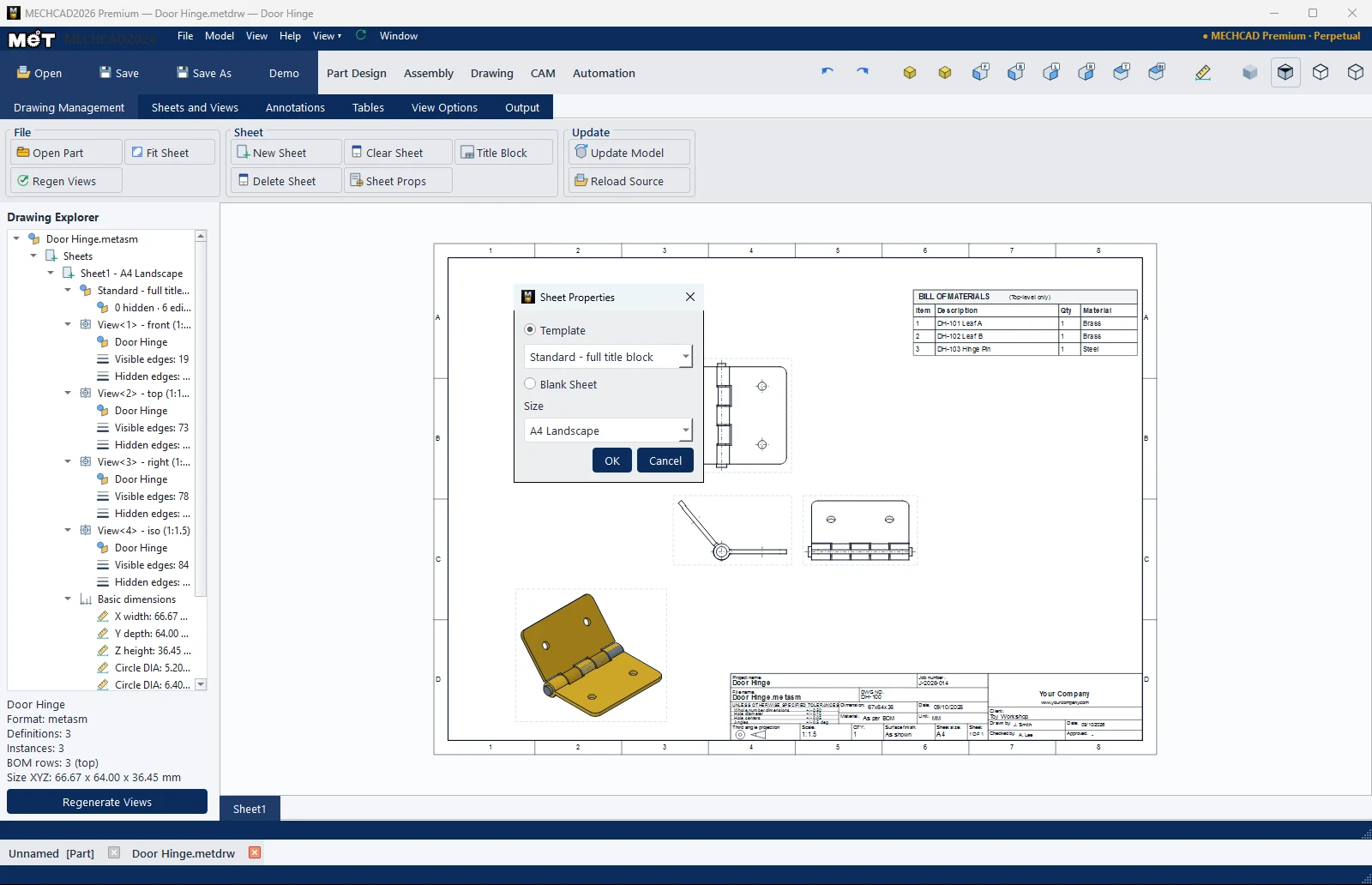
| Sheet size | Size |
|---|---|
| A4 Landscape | 297 × 210 mm |
| A3 Landscape | 420 × 297 mm |
| A4 Portrait | 210 × 297 mm |
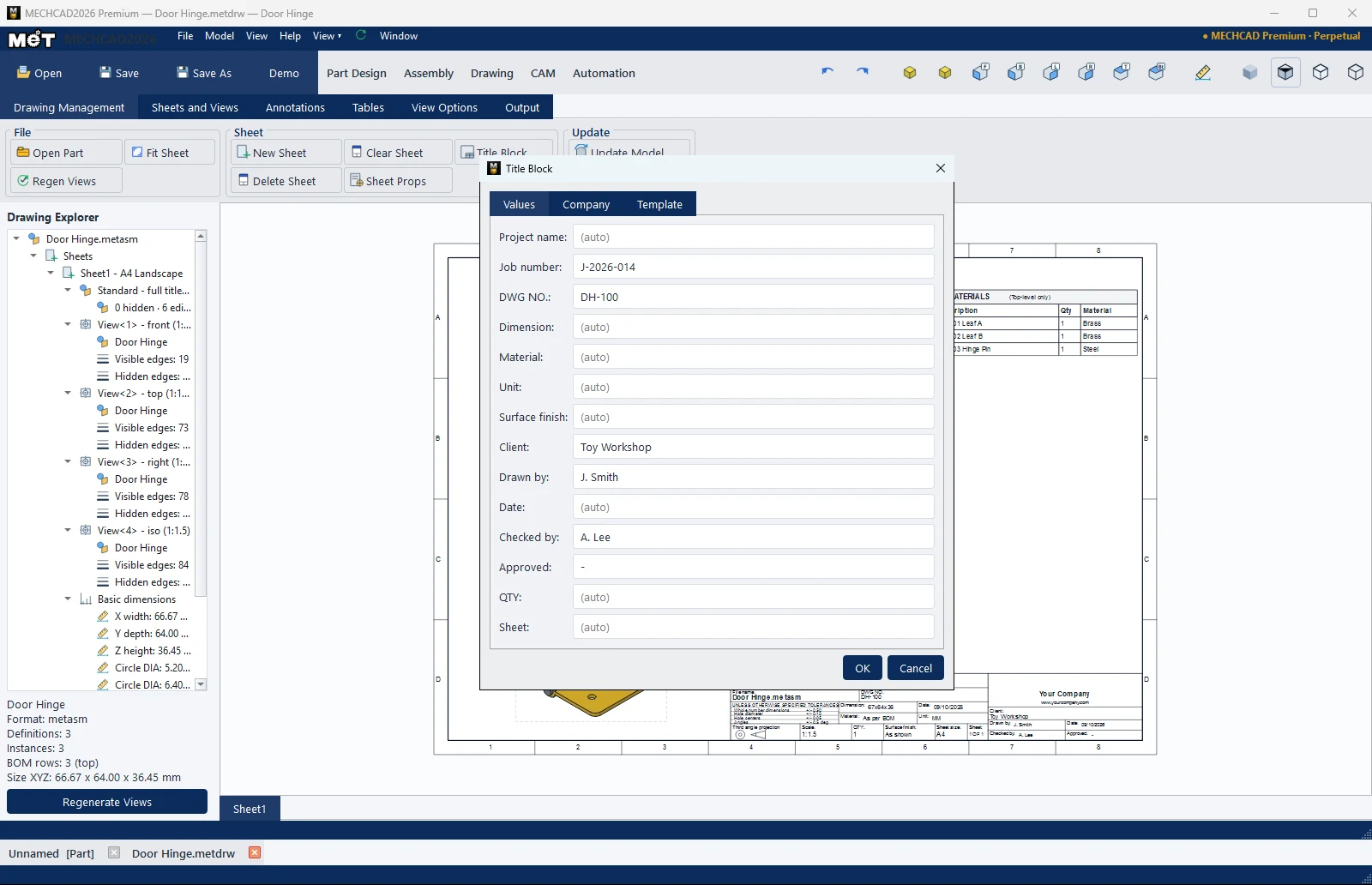
| Field | Description |
|---|---|
| Project name | Project name (auto = part name) |
| Job number | Job number |
| DWG NO. | Drawing number |
| Dimension | Overall size (auto = X×Y×Z) |
| Material | Material (auto from the part; assemblies show As per BOM) |
| Unit / Surface finish | Unit / surface finish |
| Client / Drawn by / Date / Checked by / Approved | People involved (Drawn by, Checked by, Approved and Client are remembered for the next sheet) |
| QTY / Sheet | Quantity / sheet number |
A blank field shows (auto), meaning the automatic value is used. You can also edit a value by double-clicking the text in the title block.
Note: The default tolerance box in the title block is: whole-number dimensions ±0.50, holes ±0.10, hole centre distance ±0.05, angles ±0.5°. New Sheet adds another sheet to the same drawing (choose its template and size); Clear Sheet removes every view and annotation from the shown sheet. Set your company name and logo on the Company tab of the Title Block window.