
What it does
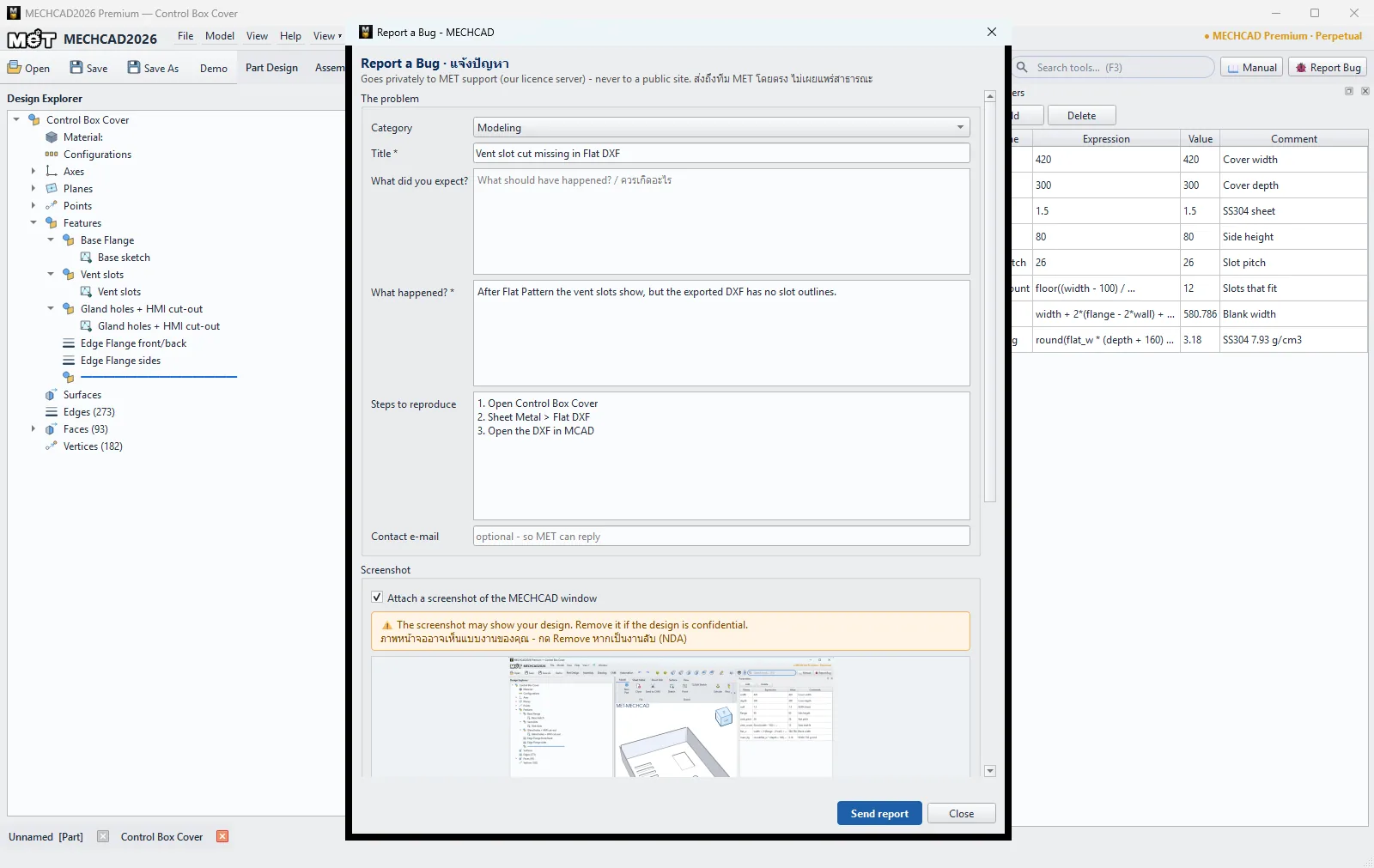
Reports a problem to the MET team from inside the program, with a screenshot and the information that helps fix it quickly. The report goes straight to MET through the MET licence server. It is never posted on a public website.
Where to find it
- Help › Report a Bug…
- Shortcut Ctrl+Shift+B
- The 🐞 Report Bug button on the right of the workbench bar, next to 📖 Manual (in a narrow window only the 🐞 icon is shown)
The Report a Bug - MECHCAD window does not block the program: you can keep working while you fill it in. Only one report window is open at a time.
Steps
- Get the problem on screen first, then press Ctrl+Shift+B. The program captures the MECHCAD window before the form appears.
- Under The problem, choose a Category (preset from the workbench you are using), then fill in Title and What happened? Both are required.
- Fill in What did you expect? and Steps to reproduce if you can. The more detail, the faster the fix.
- Check the image under Screenshot. Click Retake to capture again (the form hides for a moment), Remove to leave the image out, or Save copy… to keep the image yourself.
- Under Attached information, untick anything you do not want to send.
- Click Send report and note the ticket number that appears. Quote it when you contact MET.
| Field | Meaning |
|---|---|
| Category | Modeling, Sketch, Assembly, Drawing, CAM, Import-Export, UI, Licence, Other |
| Title * | A short summary, for example Fillet fails on a slot edge |
| What did you expect? | What should have happened |
| What happened? * | What happened instead, and any error text |
| Steps to reproduce | The steps that cause the problem, one by one |
| Contact e-mail | An address MET can reply to (optional; filled in from the licence when available) |
What is sent
| Item | Default | Content |
|---|---|---|
| Attach a screenshot of the MECHCAD window | On | An image of the MECHCAD window only (scaled down, JPEG) |
| App version, build, edition, channel, OS | On | Program version, edition and operating system |
| Current workbench and command | On | The workbench and the last command used |
| Selection (names only) | On | Only the names of the items selected in the Design Explorer |
| Recent crash / freeze report IDs | On | IDs of recent crash or freeze reports on this PC |
| Last … log lines | On | The most recent log lines. Click Show log lines to read them before sending. |
| Attach current file | Off | The open document. Sent only when you tick it. |
- The report also carries the machine ID and licence key, so MET knows which PC it came from.
- File paths, user names, computer names and e-mail addresses in the logs and in the text you type are removed before sending.
- Your model file is never sent automatically. Attach current file works only for a saved MECHCAD document (such as .metprt, .metasm, .metdrw, .metcam, .metauto) of up to 0.7 MB, and only the file extension is sent, not the file name.
- The whole report must be 3 MB or less. If it is larger, the program shortens the log lines first.
Note: The screenshot may show your design. If the design is confidential (NDA), click Remove and do not tick Attach current file.
When there is no internet connection
If the report cannot be sent, it is saved on the PC and sent automatically the next time MECHCAD starts. The status bar then shows Bug report sent from the offline queue: … with the ticket number. Reports waiting longer than 30 days are dropped.