
What it does
Fillet rounds an edge with a radius. Chamfer bevels a corner by a distance.
Where to find it
- Model › Features › Fillet / Chamfer (a body must exist)
- Right-click a face › Fillet Edges of This Face / Chamfer Edges of This Face (applies to every edge of that face)
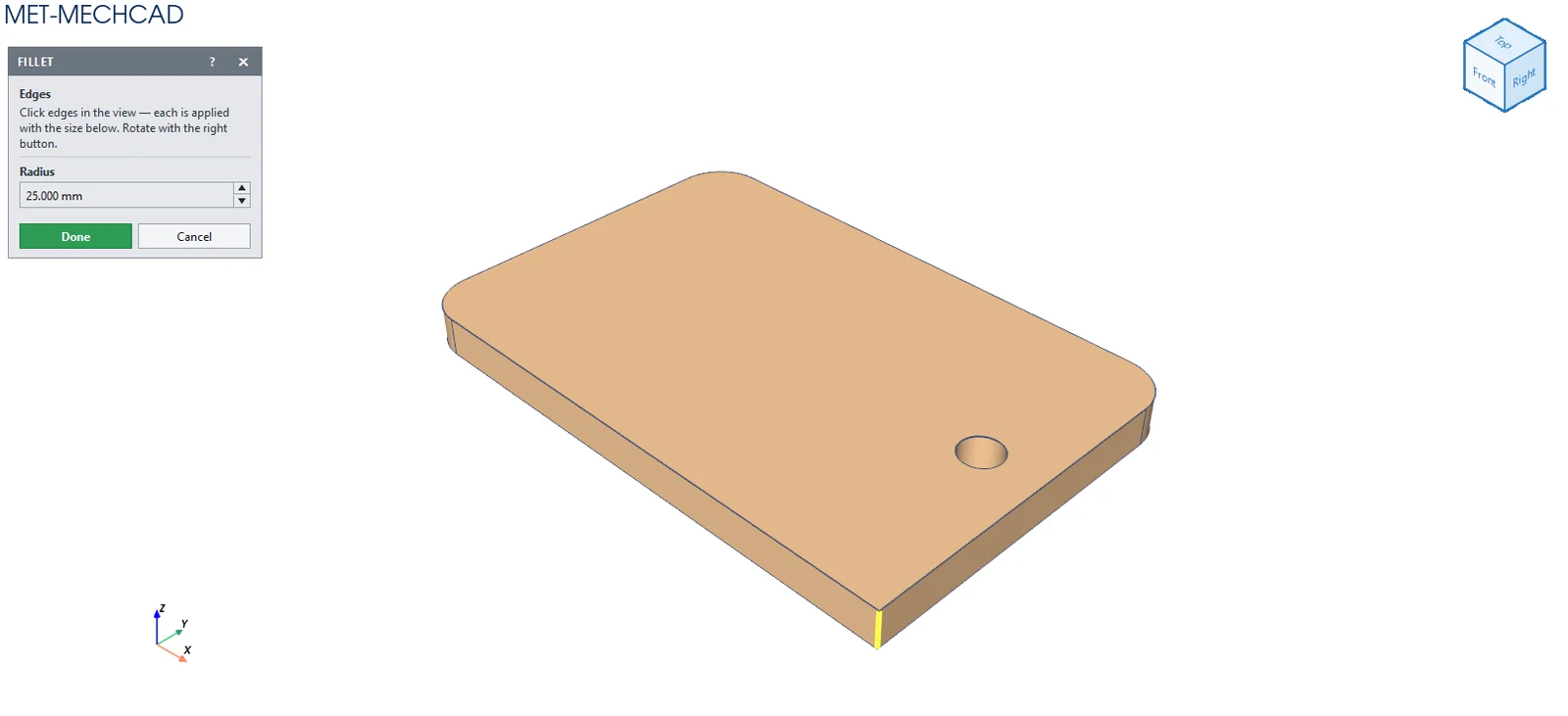
Steps
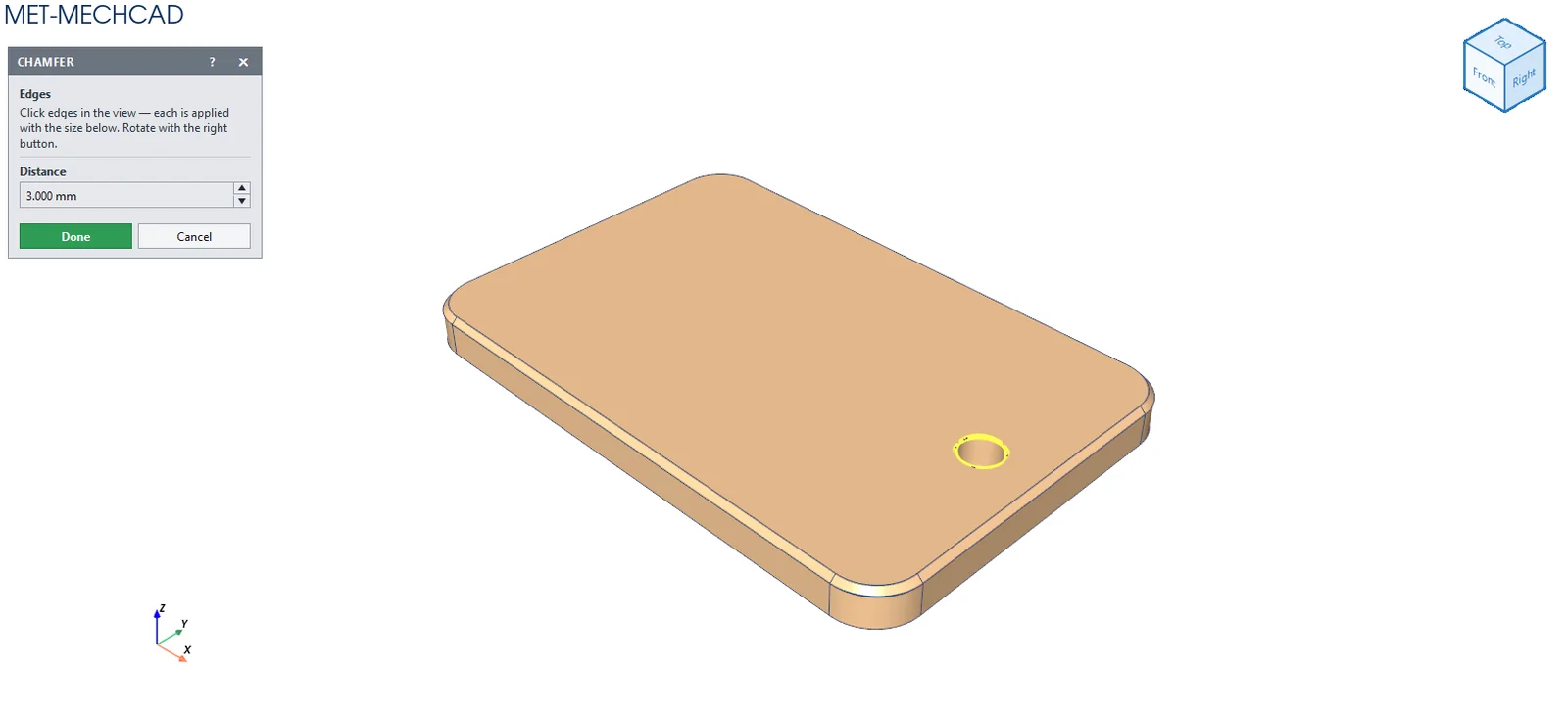
- Click Fillet (or Chamfer). A floating box opens beside the view.
- Enter the Radius (or Distance).
- Click edges in the view to build an Edge set. Selected edges turn orange, and the Edge set row shows N edge(s) selected.
- Check the preview. It is recalculated every time you add or remove an edge or change the size.
- Click OK to create one feature (Fillet N / Chamfer N) for the whole edge set, or click Cancel / press Esc to discard it. The part goes back to how it was.
Selecting an edge set
| Click | Result |
|---|---|
| Click an edge | Adds that edge to the set. Click the same edge again to remove it. |
| Click a face | Adds every edge of that face at once (round a whole rim in one click). Click the same face again to remove those edges. |
| Tab | Cycles through overlapping edges under the cursor |
| Right-drag | Rotates the view to reach back edges while you select |
| Option | Default | Description |
|---|---|---|
| Edge set | – | Number of edges currently selected |
| Radius (Fillet) | 3 mm | Fillet radius |
| Distance (Chamfer) | 3 mm | Chamfer distance |
Note: If the size is too large for the edges in the set, the preview shows the original part with a warning in the box, and OK shows could not be built on this edge set. Reduce the size or remove the problem edge.
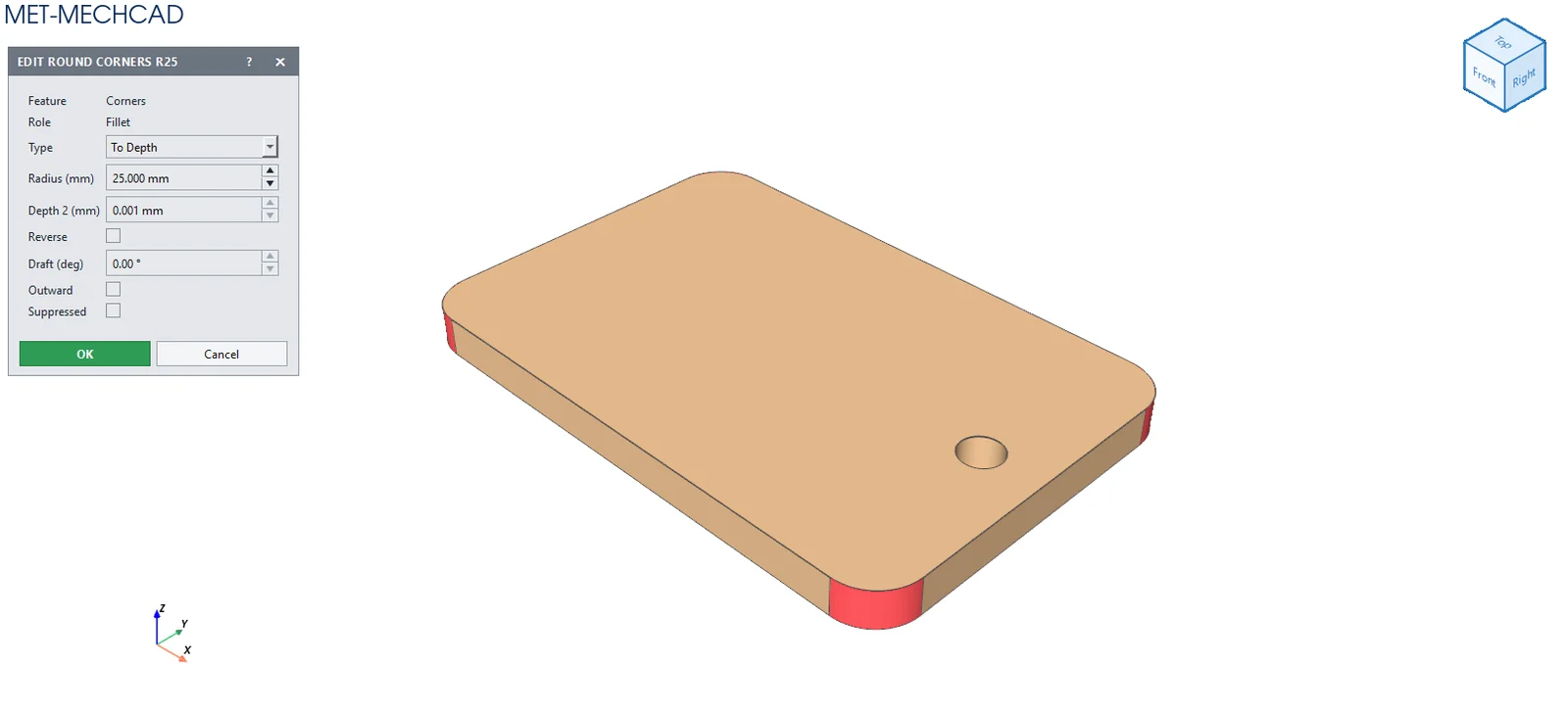
Note: Every edge in the set uses the same size. For different sizes, create separate features. To change the size later, right-click the feature › Edit Feature (Radius (mm) field). The edge set itself cannot be re-picked; to change the edges, delete the feature and create it again.