
What it does
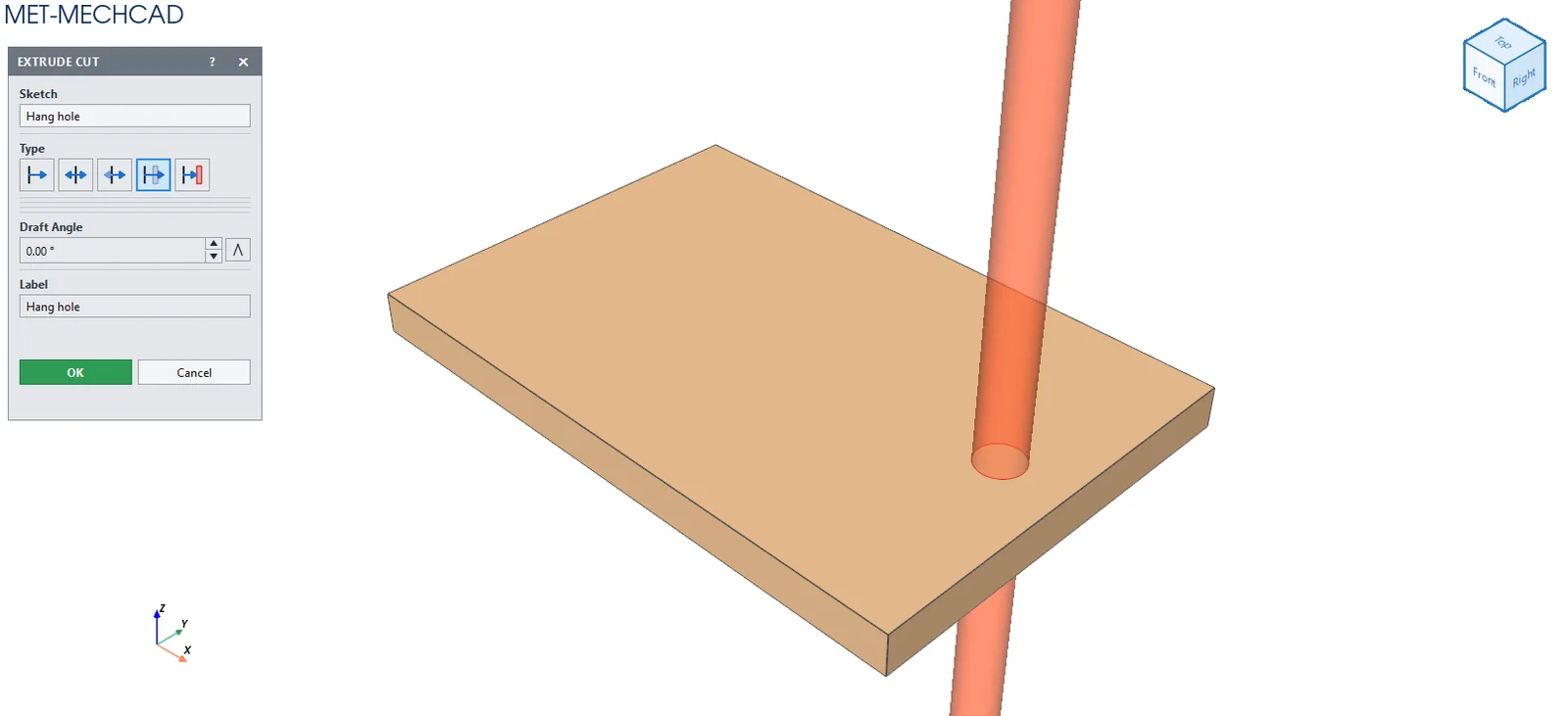
Extrude Cut removes material from the part in the shape of a closed sketch. A body must exist first (Create a body first).
Where to find it
Model › Cut / Remove › Extrude, or right-click in the view › Cut › Extrude
Steps
- Draw a sketch on a face or plane, then click Finish Sketch.
- Click Cut / Remove › Extrude.
- Choose the Type and enter the depth. The preview is shown in red (a sketch on a face cuts into the material automatically).
- Click OK to create the feature Extrusion Cut N.
| Option | Description |
|---|---|
| Type › To Depth / Mid Plane / Two Directions / Up To Face | Same as Extrude |
| Type › Through All | Cuts through the whole part (Cut only) |
| Depth / Depth 2 / ⇄ | Distance and direction |
| Draft Angle | Taper angle of the hole walls |
| Label | Feature name |
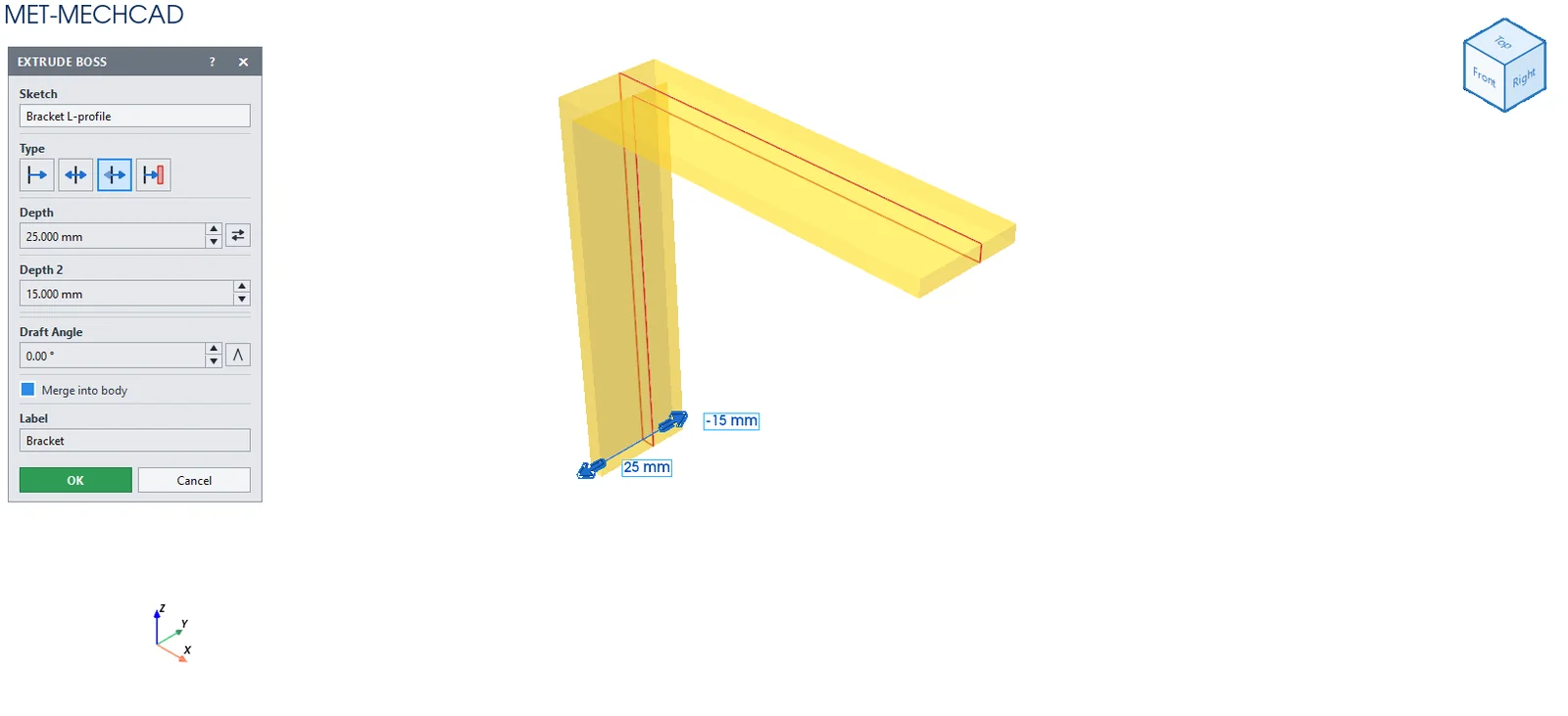
Note: The command box is floating (it does not lock the screen). Drag its title bar to move it. The preview updates immediately when you change a value. OK is saved as one Undo step. Cancel, ✕ or Esc cancels. If the conditions are not yet met, the OK button is grey and an orange message tells you what to select.