
What it does
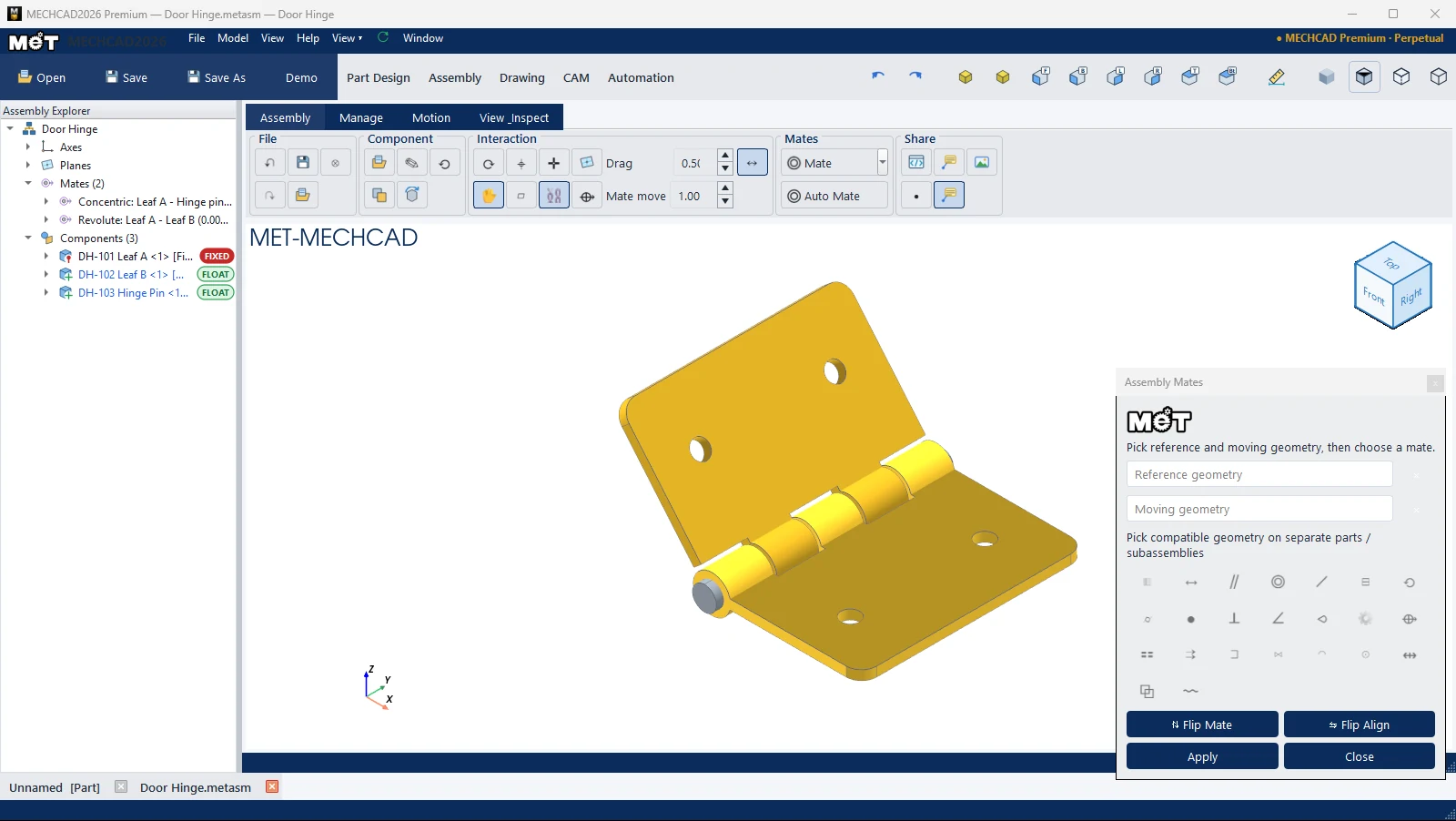
A Mate defines the relationship between components, such as concentric, face-to-face or distance. The Assembly Mates panel automatically suggests the mate types that fit the surfaces you select.
Where to find it
- Assembly › Mates › Mate (click the main button = Smart Mate), or choose a type from the button's arrow
- Right-click › Add Mate › / Constrain ›
Steps
- Click Mate. The cursor becomes a selection box.
- Click a surface, edge or hole on component 1 (Reference), then on component 2. Component 2 is the one that moves. If component 2 cannot move, the program swaps them for you.
- If several faces are stacked under the cursor, press Tab to go to the next face (Face n/N on
— click to pick it, Tab for the next one. ). - The component moves to the preview position using the best mate type. The available buttons glow yellow (Suggested: …). Click another yellow button to change the type.
- Use ⇅ Flip Mate or ⇆ Flip Align if the direction is wrong. Enter an Offset/Angle if needed.
- Click Apply (Mate applied — pick the next pair), or press Esc to discard the preview.
| Panel part | Meaning |
|---|---|
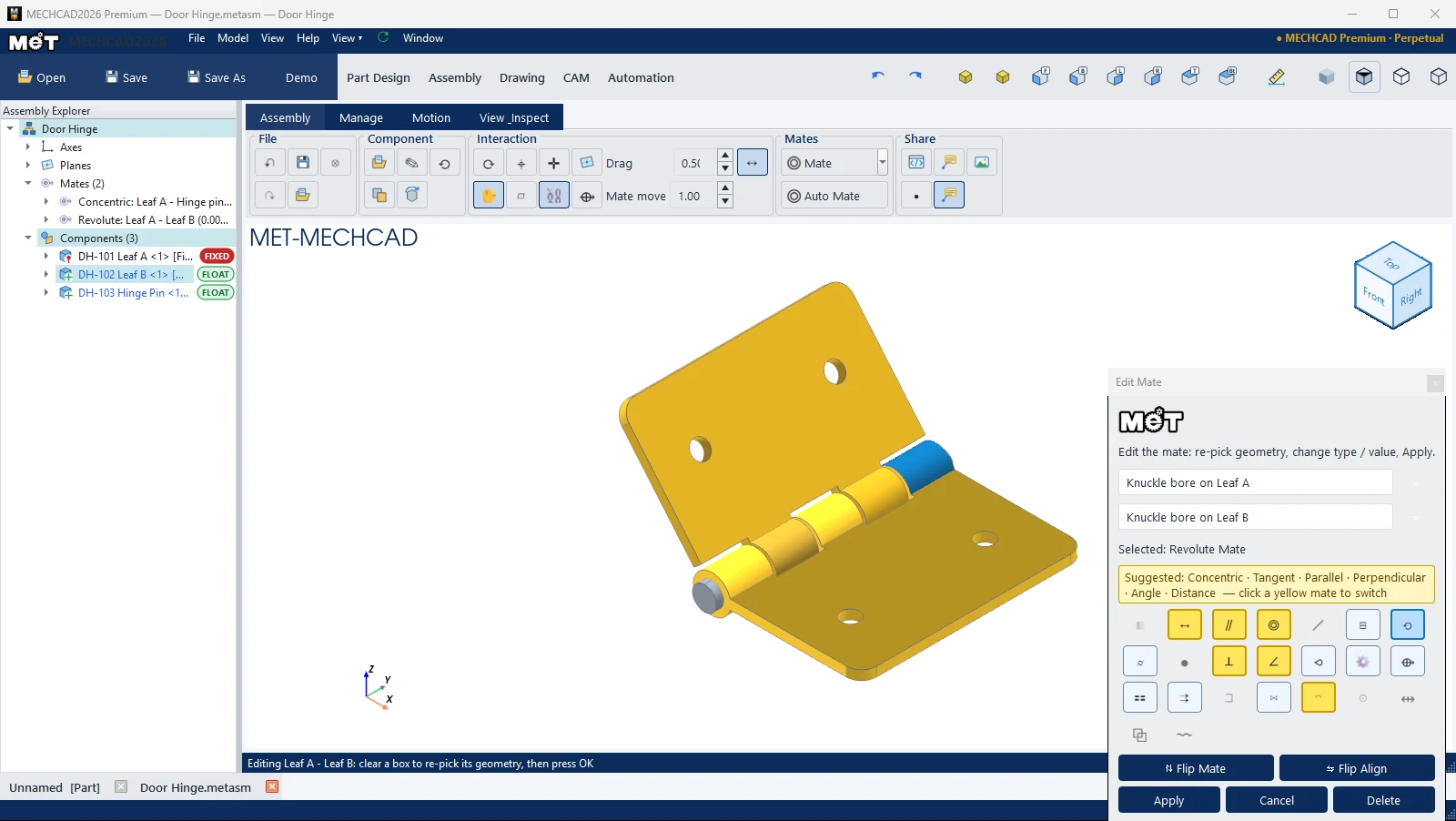
| Reference geometry / Moving geometry / Third geometry | What you selected (× = clear). Third is used for mates with 3 selections. |
| Value boxes | Offset (mm), Angle (deg), Distance (mm), Gear ratio, Pitch (mm/rev), Travel (mm/rev), Ratio, Radius (mm), Center offset (mm), Joint angle (deg), depending on the type |
| External gears / Internal gears | Gear Mate only |
| 23 mate type buttons | Buttons that cannot be used with the selected surfaces are grey |
| ⇅ Flip Mate | Mates to the other side of the face |
| ⇆ Flip Align | Switches Aligned / Anti-aligned |
| Apply / Close | Confirm / close (edit mode: Apply / Cancel / Delete) |
Note: If a mate conflicts with an existing mate, you see ⚠ Over-defined — this mate conflicts (likely a mis-picked face) and a floating card with the buttons ↶ Undo mate, ↻ Re-pick and ✓ Keep.
Large imported assemblies
- A new mate solves only the parts it affects (the moving part and the parts mated to it). Fixed parts act as boundaries, so the whole assembly is not pulled into the solve. Imported machines with thousands of parts stay responsive.
- If a solve takes longer than about 0.3 seconds, a Solving mates: N moving bodies, step n/N ... window appears with a Cancel button. Cancel discards the new mate and the parts go back to where they were.
Mates that cannot be added
| Case | Status bar message | What to do |
|---|---|---|
| Both selected faces are in the same rigid sub-assembly | Both faces are on the SAME rigid sub-assembly — it already moves as one body. Right-click → Rigid Body → Ungroup first, or open the sub-assembly in its own window to mate inside it. | Right-click › Rigid Body › Ungroup Rigid Body first, or open the sub-assembly in its own window (Open Sub-Assembly (Edit)) and add the mate inside it. |
| Component 2 (the moving one) is in a sub-assembly that has a fixed member | The moving part belongs to a sub-assembly with a FIXED member — Unfix it first, or pick this face as the REFERENCE (first pick) and the free part second. | Unfix it first, or pick this face first (Reference) and the free part second. |