
What it does
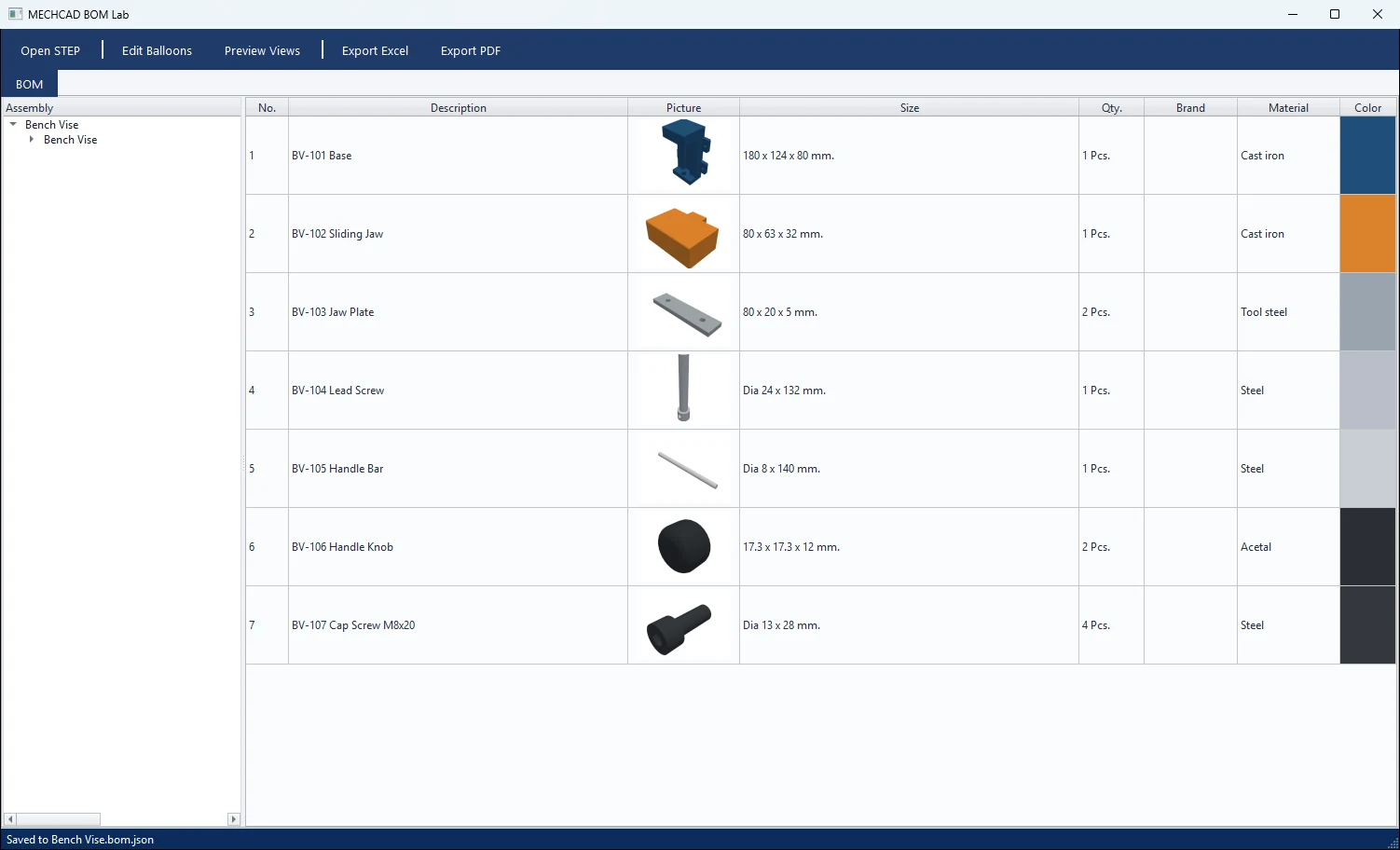
Auto BOM opens the MECHCAD BOM Lab window. It builds a parts list from the open assembly, with pictures, sizes and quantities. You can add brand, material and colour, then export Excel or PDF with an exploded view and balloons.
Where to find it
Manage › Assembly Tools › Auto BOM
Steps
- Open an assembly, then click Auto BOM.
- Check the list. You can type Brand and Material directly in the table. Double-click Color to pick a colour.
- Click Edit Balloons to arrange the exploded view and balloon positions, then Preview Views.
- Click Export Excel (
.xlsx) or Export PDF (.pdf).
| Item | Description |
|---|---|
| Open STEP... | Build a BOM directly from a STEP file. |
| Assembly / Qty | Structure tree with quantities. |
| No., Description, Picture, Size, Qty., Brand, Material, Color | Table columns. |
| Edit Balloons | Exploded-view editor: Move Parts, Move Balloon, Fix View, Explode slider 0–300%, Reset View, Reset Balloons, Save / Cancel. |
| Status bar | Summary of the number of unique part sections and the total count. |
Note: This command is in MECHCAD Expert and Premium. On Standard, the status bar shows a message suggesting an upgrade. See MECHCAD Editions.