
What it does
Explains how to control the 3D view with the mouse and keyboard. The MECHCAD default is: right button rotates, left button selects/pans, wheel zooms.
Defaults (preset: MECHCAD)
| Action | Result |
|---|---|
| Left-click | Selects an object (face, edge, feature, component) |
| Drag with the left button on empty space | Pans the view. In an assembly, drags a selection box. |
| Drag with the right button | Rotates the view around the point under the cursor |
| Quick right-click | Opens the right-click menu |
| Drag with the middle button | Pans the view |
| Shift + drag with the left button | Rotates the view |
| Ctrl + drag with the left button | Rolls the view around the line of sight |
| Turn the wheel | Zooms in/out, toward the cursor position |
Note: While you select edges or faces (for example for Fillet or Shell), the left button only selects. You can still drag with the right button to rotate. While you draw a sketch, panning is turned off, but you can rotate and zoom.
Change the mouse settings
- File › System Options… › All Workspaces › Mouse Interaction
- Choose a Preset: MECHCAD (default), Alibre Design, SolidWorks or Custom.
- Adjust the details as in the table, then click OK or Apply (it takes effect in every view immediately).
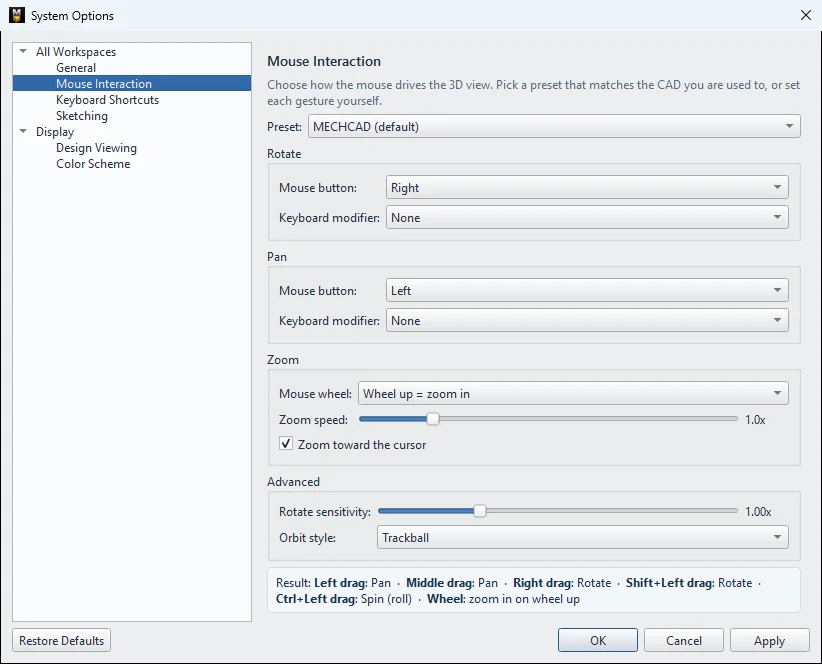
| Option | Meaning |
|---|---|
| Preset | MECHCAD: rotate = right, pan = left. Alibre Design: rotate = right, pan = middle. SolidWorks: rotate = middle, pan = Ctrl+middle. |
| Rotate › Mouse button / Keyboard modifier | The button and modifier key (None / Shift / Ctrl) for rotating |
| Pan › Mouse button / Keyboard modifier | The button and modifier key for panning |
| Mouse wheel | Wheel up = zoom in, or Wheel up = zoom out |
| Zoom speed | 0.1–5.0x |
| Zoom toward the cursor | Zooms toward the cursor |
| Rotate sensitivity | 0.25–3.0x |
| Orbit style | Trackball / Terrain / Joystick |
The Result: line at the bottom summarizes what each button does with your settings.
Try it: Look inside a USB-stick organiser
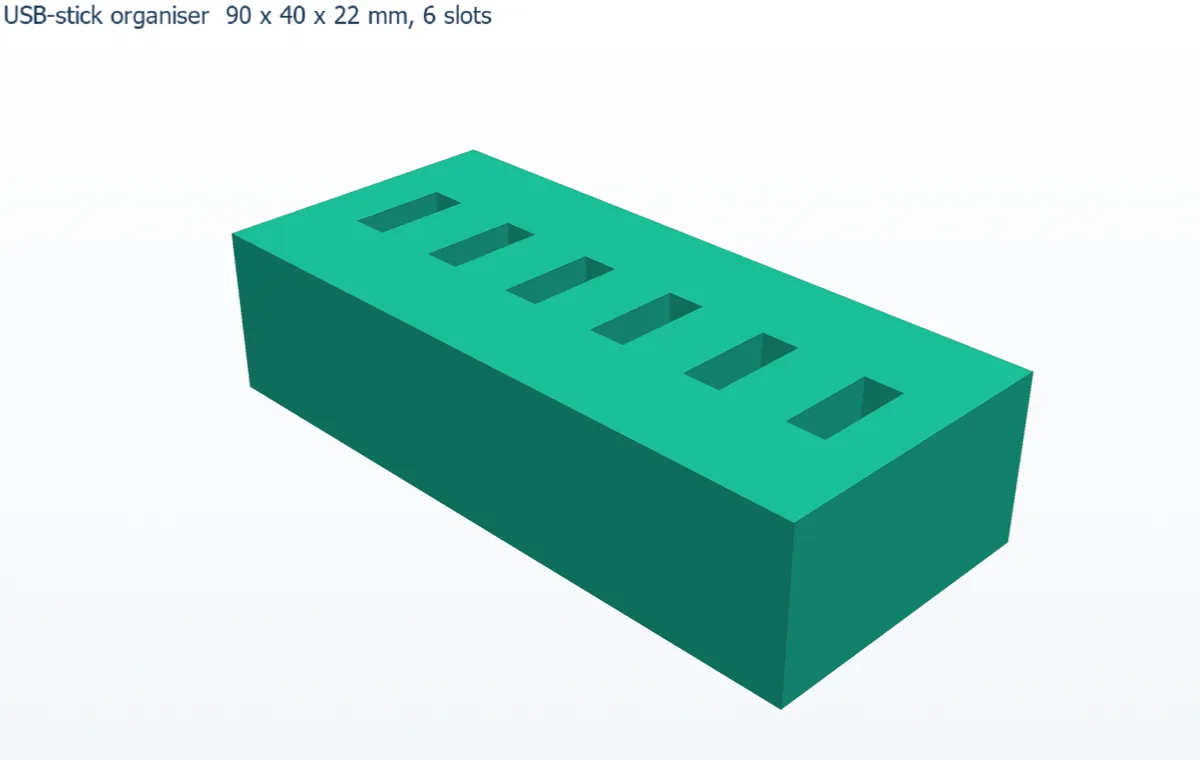
Six slots that hold your USB sticks upright. The slots are small and deep, so you have to rotate, zoom and pan to check them: good practice for your mouse hand.
- Sketch on XY a rectangle 90 × 40, then Extrude 22 mm.
- Right-click the top face › New Sketch on this face. Draw a rectangle 5 × 13, 8 mm from the left edge and 13.5 mm from the front edge. Finish Sketch, then Cut / Remove › Extrude 12 mm.
- Click Model › Features › Linear Pattern: Count 6, Spacing 14, Direction X, then OK.
- Now navigate:
- Point at the first slot and turn the wheel: the view zooms toward the cursor.
- Drag with the right button: the view rotates around the point under the cursor, so you can look down into the slot.
- Drag with the middle button (or the left button on empty space): pan to the last slot.
- Ctrl + drag with the left button: roll the view.
- A quick right-click opens the right-click menu instead of rotating.
- Open File › System Options… › Mouse Interaction, choose the SolidWorks preset and click Apply. Try rotating with the middle button, then choose MECHCAD (default) again.
Challenge: Set Mouse wheel to Wheel up = zoom out if that is what your other CAD program does, and check the Result: line.